

How to Display Member Events on Screens Effectively
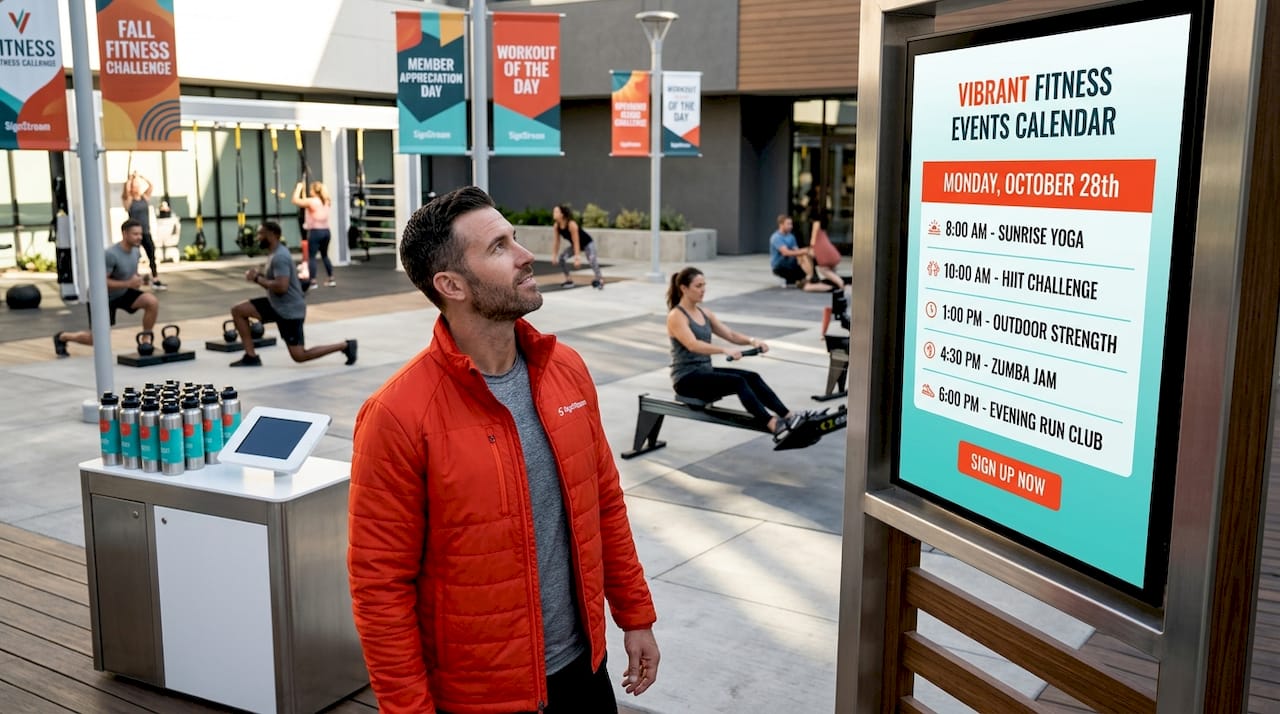
If you manage events at a fitness center, country club, or similar venue, you already know the frustration: members miss class sign-ups, staff fields the same questions repeatedly, and a printed flyer on the front desk does almost nothing. The answer is to display member events on screens throughout your venue, turning every TV or monitor into a live communication tool. This guide walks you through the hardware and software you need, how to set everything up correctly, what to do when things go wrong, and how to measure whether your screens are actually working.
Table of Contents
Key takeaways
Point | Details |
Start with the right setup | Choose screens and software that match your venue’s layout and your event data needs. |
Schedule content by audience | Assign different playlists to lobby, locker room, and poolside screens for maximum relevance. |
Prevent stale information | Use content expiration settings so outdated events disappear automatically without manual cleanup. |
Measure and adjust | Track attendance trends and screen engagement to refine what you show and when you show it. |
Keep design consistent | Brand-consistent visuals on every screen build member trust and make event info easier to absorb. |
How to display member events on screens: what you need first
Before you configure a single playlist, you need the right foundation. Getting this wrong means you will spend more time troubleshooting than communicating.
Screen types and placement
Commercial-grade displays hold up better than consumer TVs in high-traffic areas. For a fitness center, think about lobby entry points, near the front desk, beside the group fitness studio, and in locker room corridors. Country clubs benefit from screens in the pro shop, dining room entrance, and near the pool deck. The goal is to catch members at natural pause points, not to plaster screens on every wall.
Screen size matters less than viewing distance. A 55-inch display works well at 8 to 12 feet. Anything beyond 15 feet calls for a 75-inch or larger panel. Mount screens at eye level or slightly above, never so high that members have to crane their necks.
Software and data requirements
Your display software needs to do three things well: pull event data from your management system, format it cleanly, and push updates to screens without you touching each one manually. Digital signage platforms vary widely in how they handle this, so check compatibility with your existing booking or club management tool before committing.
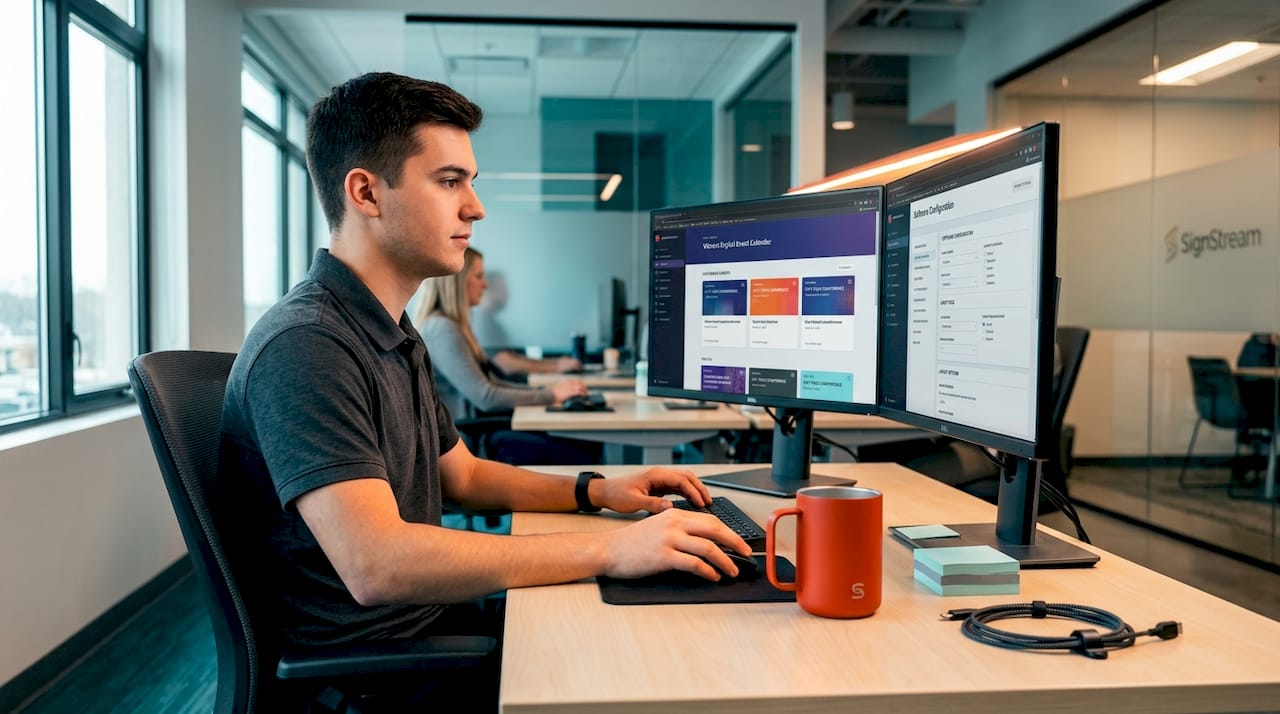
The event details worth showing on screen include event name, date and time, location within the venue, instructor or host name, capacity or spots remaining, and a registration link or QR code. Resist the urge to show everything at once. Cluttered screens get ignored.
Here is a quick comparison of what to look for when evaluating display tools:
Feature | Why it matters |
Event field control | Lets admins choose which data columns appear, keeping displays clean |
Playlist scheduling | Automates content rotation by time of day and date |
Content expiration | Removes past events automatically without manual deletion |
Multi-screen management | Pushes updates to all screens from one dashboard |
Template library | Speeds up design and keeps branding consistent |
Analytics | Shows which content gets the most engagement |
Admins can control which event fields are visible, sortable, and filterable on digital displays, which is the kind of configuration control that separates a polished member-facing display from a raw data dump.
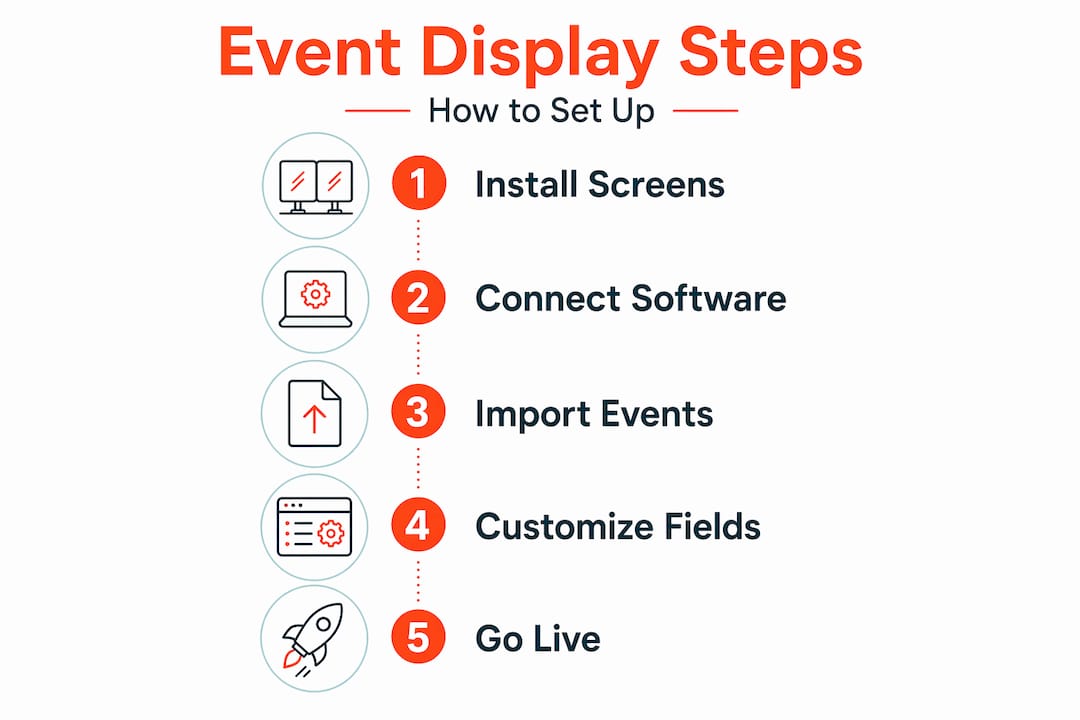
Setting up your event displays step by step
Once your hardware is in place and your software is chosen, the setup process follows a clear sequence.
Connect your event data source. Link your digital signage platform to your club management or scheduling software. Most platforms support API connections or CSV imports. If your system does not offer a direct integration, a scheduled CSV export on a daily or hourly basis works as a reliable fallback.
Configure which fields appear. Go into your display settings and select only the fields members need. Effective event display needs both content scheduling logic and display controls for fields and filtering. Hide internal codes, admin notes, or any data that means nothing to a member walking past.
Build your playlists and set dayparting. Dayparting means scheduling different content for different times of day. Morning screens near the cycling studio can show the day’s spin schedule. Evening lobby screens can highlight weekend social events. Playlists can be scheduled by time and date with automatic content removal after expiry, which saves you from ever having to manually pull a past event off a screen.
Assign playlists to specific screens. Signage platforms let you assign multiple playlists to different screens simultaneously, so your locker room display shows something different from your lobby display. This is not just a nice-to-have. It is the difference between content that feels relevant and content that feels generic.
Design for readability. Use your brand colors and fonts, but keep text large enough to read from across the room. A good rule: if you have to squint, the font is too small. Limit each slide to one or two events. Use high-contrast backgrounds. Leave breathing room around text.
Test before you go live. Preview every screen from the actual viewing distance. Check that event times are accurate, that expired content is not showing, and that the design looks right on the physical display rather than just on your laptop.
Pro Tip: Set up a dedicated “test screen” in your back office or manager’s station that mirrors your lobby display. You can catch errors before members ever see them.
Using widgets and pre-built templates for event calendars speeds up the process significantly. Many platforms offer drag-and-drop calendar widgets that pull directly from your event feed, so you spend minutes, not hours, on layout.
Troubleshooting common event display problems
Even a well-configured setup runs into issues. Here are the ones event coordinators encounter most often, and how to handle them.
Stale event information is the most damaging problem. A screen showing last Tuesday’s yoga class as “upcoming” destroys member trust fast. The fix is content expiration settings. Every event slide should have an end date and time so it disappears automatically. If your platform does not support expiration natively, build a weekly content audit into your calendar.
Cluttered, hard-to-read displays happen when coordinators try to show too much at once. Digital signage should deliver current, consistently formatted content rather than static slides packed with information. One event per slide, clear hierarchy, and a consistent template solve this.
Scheduling errors across multiple screens become a real headache when you have eight screens in different areas of a large club. The solution is centralized management. Any update you make should push to all relevant screens simultaneously, not require you to log into each one separately.
Common mistakes that coordinators make when they first start to show events on screens:
Using different fonts and colors on different screens, which makes the venue look disorganized
Forgetting to update screen content when events are canceled or rescheduled
Overloading lobby screens with promotional content and leaving no room for practical event info
Ignoring screen brightness settings, which causes washed-out displays in bright, windowed areas
Skipping the review of common platform pitfalls before locking in a software choice
“Screens in gyms show schedules, announcements, nutrition tips, member milestones, and event promos arranged by time of day.” — Fit Viz Blog
That kind of organized, time-aware content strategy is what separates high-performing venues from ones where members still ask the front desk what time the tennis clinic starts.
Measuring success and improving over time
Getting your screens up and running is the starting point, not the finish line. The venues that get the most out of digital signage for events are the ones that treat it as an ongoing system, not a one-time installation.
Here is how to build a real feedback and improvement loop:
Gather member feedback directly. A simple monthly question at the front desk, “Did you see the event announcement on the screen?” tells you whether members are noticing your displays at all. You can also add a QR code to event slides that links to a short feedback form.
Track attendance against display schedules. If you promoted a Saturday morning pilates class on your lobby screen for two weeks and attendance jumped, that is a data point worth acting on. Venues using digital signage have reported a 25% rise in class attendance after implementation. That kind of lift does not happen by accident. It happens when the right event reaches the right member at the right moment.
Use platform analytics. Good signage software shows you which slides get the most dwell time, which playlists run as scheduled, and where content gaps exist. Review this data monthly.
Run a content audit every quarter. Pull up every active template and playlist. Remove anything outdated, refresh visuals that look tired, and add new event categories that reflect what your members are actually booking.
Pro Tip: Visual design consistency and brand messaging on event screens increase member trust and engagement. Build a master template library and require all new event slides to use it. This cuts design time and keeps every screen looking intentional.
You can also embed event calendars on your website or member portal to complement what members see on-site. When a member checks the schedule at home and then sees the same event promoted on the lobby screen, that repetition drives registration.
My take on screens and member engagement
I have worked with enough venue operators to say this with confidence: the biggest mistake is treating screens like digital bulletin boards. You put something up, walk away, and assume the job is done. It is not.
What I have seen work consistently is treating every screen as a live information hub that reflects what is happening in the venue right now. Not what happened last week. Not a generic slide about your brand values. The specific, timely, relevant thing that a member walking through your door at 6:45 AM actually needs to know.
The venues that get this right do one thing differently. They assign someone ownership of the screens. Not just IT. Not just marketing. An event coordinator or operations manager who checks the displays the same way they check their email. That person catches the expired class announcement before a member does. They notice when the locker room screen has been showing the same slide for three weeks.
I have also seen coordinators make the mistake of going too promotional. Every slide is a sales pitch. Join this. Buy that. Members tune it out within a week. The best-performing screens I have observed mix event announcements with practical info: court availability, pool hours, instructor bios, member milestones. That mix keeps people looking.
If you are at a fitness center or country club and you want your screens to actually change behavior, the formula is simple. Keep it current, keep it relevant, keep it clean, and give someone the job of maintaining it.
— DKS
How Signstream makes event display effortless
Signstream is built for exactly this kind of environment. Whether you manage a single fitness center or a multi-location club network, Signstream lets you update every screen instantly from any device, schedule playlists by time of day, and deploy unlimited screens without extra charges. Clients have seen measurable results, including a 25% lift in class attendance, by using Signstream to promote events at the right moment on the right screen. Explore the full range of signage management features to see how playlist scheduling, template widgets, and analytics work together. Ready to see it in action? Book a quick demo and find out how fast you can go from setup to live displays.
FAQ
What is the best way to display upcoming member events on screens?
Use a digital signage platform that connects directly to your event management system, then configure playlists with dayparting so the right events appear at the right times. Limit each slide to one or two events for maximum readability.
How do I prevent outdated events from showing on my screens?
Set content expiration dates on every event slide so they are removed automatically once the event passes. Most digital signage platforms support this feature natively, and it eliminates the need for manual cleanup.
Can I show different events on different screens in my venue?
Yes. Signage platforms let you assign separate playlists to each screen, so your lobby display can promote weekend social events while your studio screen shows the day’s class schedule.
How do I know if my event screens are actually working?
Track attendance for events you actively promote on screens and compare it to events you do not. Combine that with platform analytics showing dwell time and playlist performance, and you will have a clear picture of what is driving results.
Do I need technical expertise to set up digital signage for events?
No. Modern platforms like Signstream are designed for non-technical users, with drag-and-drop templates, pre-built widgets, and cloud-based management that anyone on your events team can operate without IT support.
Recommended
Comments