

Keep Digital Signage Playing Offline: 3 Essentials for IT and Ops

Yes, digital signage can play reliably offline, but only when players are pre-loaded with local content and configured with clear fallback rules. The setup that matters most: persistent local storage, a playback manifest that doesn’t need a live connection, and provisioning that survives a reboot. Get those three right, and an outage becomes invisible to your customers. Skip them, and every dropped connection turns into a blank screen.
TL;DR:
Local storage capacity and video bitrate determine how long a screen can operate unattended before requiring a reconnection, with higher bitrate and longer video files reducing runtime.
Offline content should prioritize static, critical information like menus and safety notices, with time-sensitive promotions set to auto-hide once the device reconnects to prevent outdated offers.
Reliable offline playback depends on preloading all assets and manifests, configuring persistent offline flags, and conducting full 24-hour offline tests before deployment, especially in remote or secure locations.
Devices should be secured during offline periods with signed manifests, limited network services, and remote wipe capabilities, since offline players can be more exposed to tampering or theft.
SignStream’s platform supports reliable offline playback on many screens through local caching, automatic reconnection, and remote provisioning, avoiding the complexity of overly elaborate sync systems.
Table of Contents
How Offline Playback Digital Signage Actually Works
Every reliable offline system runs on the same core mechanism: a local cache paired with a manifest file that tells the player what to show and when. Think of the manifest as a locked-in schedule. As long as it’s synced before the connection drops, the player keeps reading from it and looping content exactly as planned, with zero awareness that the cloud connection is gone.
Sync frequency determines how “current” your offline state actually is. Most cloud-synced players check in every few minutes to a few hours, pulling whatever changed since the last check. If the network disappears mid-cycle, the device falls back to its “last-known-good” playlist, the most recent version it fully downloaded and verified, rather than a half-downloaded or corrupted one.
Storage and bitrate set the ceiling on how long a screen can run unattended. A device with local storage playing 1080p video at a typical bitrate can hold several hours of unique footage; drop to 720p at a lower bitrate and that same storage stretches to a longer duration. Looping shorter playlists extends that runtime indefinitely.
Not everything survives offline. Content types that depend on a live connection will fail the moment the network drops:
Live dashboards and real-time data feeds (weather, stock tickers, social walls)
Embedded web content and third-party widgets loaded at runtime
Streaming video pulled from external platforms rather than stored locally
The fix isn’t complicated: convert time-sensitive feeds into periodically updated static graphics, and store video assets locally instead of streaming them, as SignStream’s guidance on handling YouTube content explains for exactly this kind of workaround.
Which Offline Architecture Fits Your Operation?
Three architectures dominate the offline-capable signage market, and each solves a different operational problem.
Cloud-synced players with local cache. These devices check in regularly, pull updates, then store enough content locally to bridge gaps in connectivity. They’re the best fit when you need centralized control across many screens but can tolerate brief windows where new content waits to sync. Retail chains, gyms, and multi-location restaurants lean here because remote updates still matter most of the time.
Standalone, air-gapped players updated via USB or SD card. No network dependency at all, updates happen by physically swapping storage or plugging in a drive. This approach is common in offline digital signage deployments with no cloud connection, and it shines in secure facilities, remote sites with no reliable connectivity, or anywhere reducing network exposure outweighs the convenience of remote pushes.
All-in-one kiosks and embedded players with internal scheduling. These run their own playback logic entirely on-device, often with internal storage and USB input built into the hardware itself, as seen in commercial kiosk units designed for continuous looping. Trade shows, events, and single-location installs favor this model because setup is simple and there’s nothing to lose if Wi-Fi at the venue is unreliable.
Distributed retail and franchise networks usually want option one. Remote branches and secure facilities lean toward option two. Events and trade shows are built for option three.
How Do You Set Up Devices for Offline Mode?
Provisioning is where most offline failures actually start, not during the outage itself, but weeks earlier when a device wasn’t configured to handle one.
Start with persistent offline flags. Many commercial media players include a dedicated offline mode setting that suppresses network configuration menus on boot and lets playback resume automatically with no connection present. The Amino H200 media player’s offline mode is a documented example: once enabled, the device skips network checks entirely instead of hanging on a setup screen waiting for a connection that isn’t there.
Before deployment, technicians should confirm:
All assets and the manifest are fully preloaded, not partially downloaded
File checksums match what the content management system expects
A startup playlist is set as the default, so the device has something to play immediately on power-up
Watchdog and scheduled reboot settings are active to recover from a frozen player automatically
For multi-site rollouts, image a USB drive or pre-seed storage before shipping devices to remote locations. Remote pre-provisioning, when your platform supports it, cuts on-site labor dramatically, something covered in more depth in SignStream’s guide to scaling enterprise signage networks.
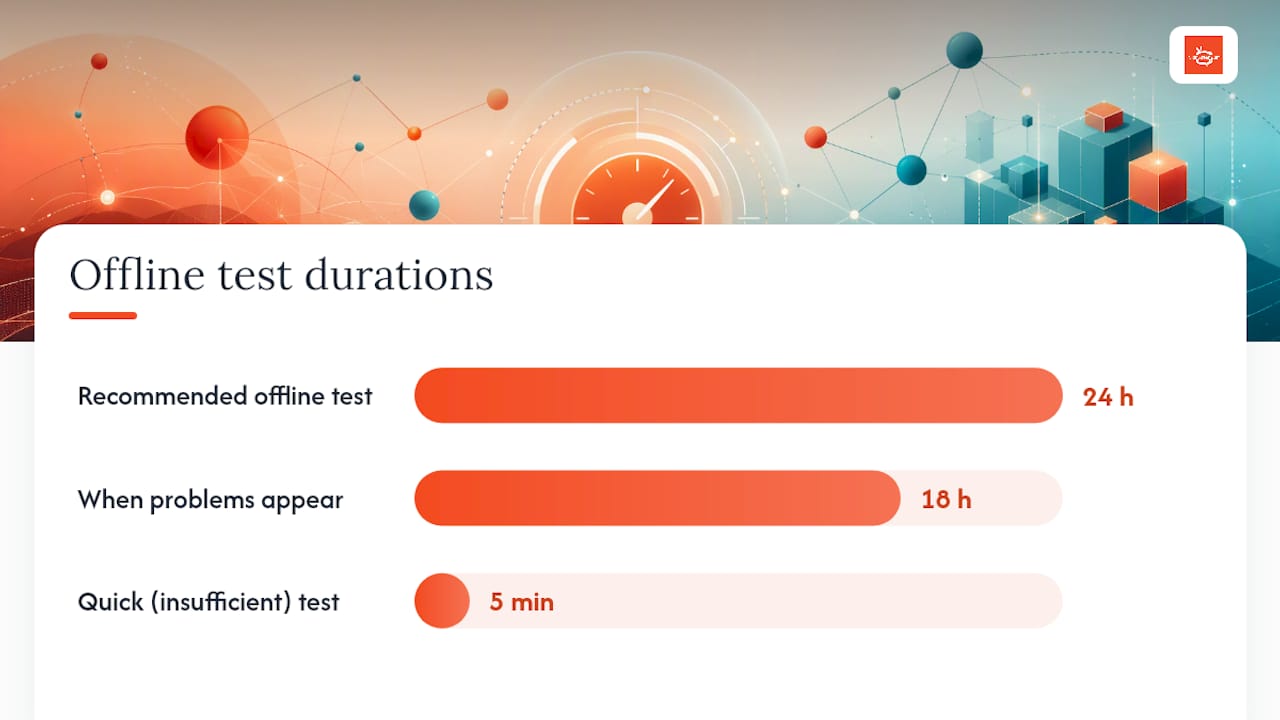
Pro Tip: Run a full 24 hour offline simulation on every new device model before it goes into production. Pull the network cable, let it loop, and check the logs the next morning. Problems that surface at hour 18 rarely show up in a five-minute test.
Preparing Content and Schedules for Outages
Offline content strategy comes down to prioritization. When you can’t guarantee an update reaches the screen, the content already loaded needs to carry your most important messages by default.
Build offline playlists that lead with critical, rarely-changing information: menus, pricing, safety notices, contact details, before rotating to promotional content
Compress video and image assets to stretch local storage further without sacrificing visible quality
Set conservative expiry windows on time-sensitive promotions so an expired offer doesn’t linger on-screen for days after a connection drop, and configure content to auto-hide once the device reconnects and syncs
Test every offline scenario in a staging environment first, disconnecting a test device the same way a real outage would, before pushing changes to production screens
Design decisions here echo broader lessons in SMB digital presence and design: the content people see when nothing else updates says more about your business than the polished version they see on a good day.
What Do You Do When a Device Goes Offline?
Losing connectivity doesn’t mean losing visibility, if you know where to look. Local logs still record everything: asset download history, manifest timestamps, and playback errors, even with no network to report them anywhere.
Vendor documentation across the industry converges on a consistent troubleshooting sequence, and it’s worth following in order rather than jumping straight to a site visit:
Check power and storage health first. A surprising number of “offline” screens are actually powered off or running on a failing drive.
Verify the local playlist and manifest are intact and pointing to valid, uncorrupted assets.
Run a local playback test directly on the device to confirm content actually renders, not just that files exist.
Once connectivity returns, force a resync and confirm the device pulls the latest manifest rather than continuing to loop stale content.
Escalate to an on-site visit only after remote diagnostics rule out a simple reconnection fix, hardware failures and physical cable issues rarely resolve themselves. Devices that continue playing cached content correctly but simply can’t pull updates are behaving exactly as designed, a distinction NowSignage’s explanation of offline mode behavior lays out clearly: playback continues, update checks resume on reconnect.
Keeping Offline Players Secure Through Reconnection
An offline device isn’t a device you can ignore from a security standpoint, it’s often the one most exposed during the gap between updates.
Use signed manifests and asset checksums so a player can detect tampering before it plays a file that shouldn’t be there
Roll out updates in stages after reconnection rather than pushing every device at once, and run integrity checks before content goes live
Whitelist only the specific network services a player needs during reconnection, limiting what’s exposed while it catches up on updates
Maintain remote wipe capability and asset expiry policies for any device that goes missing or gets stolen, so cached content doesn’t become a liability
These practices align with the general security expectations laid out by the Digital Signage Federation, and they’re worth reviewing in full in SignStream’s practical security guide for IT teams.
How SignStream Handles Offline-Prone Networks
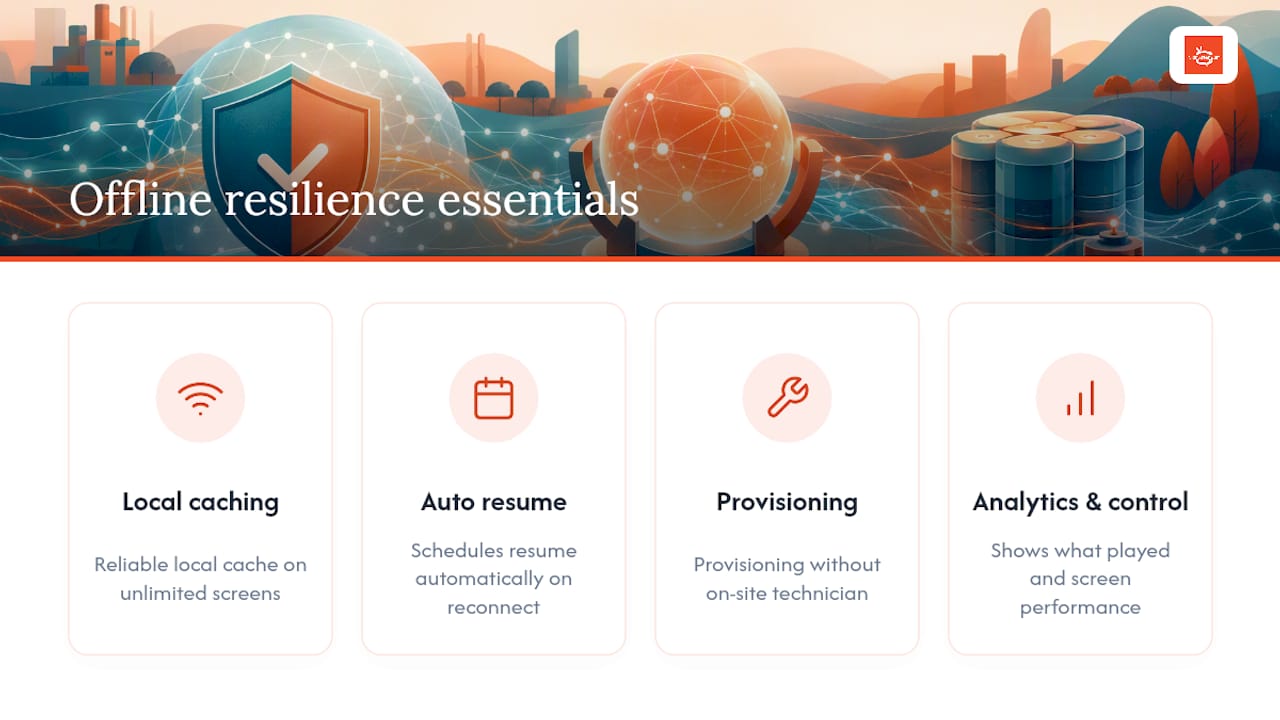
SignStream’s platform is built around the exact operational checklist this article walks through: reliable local caching on unlimited screens, remote scheduling that resumes automatically on reconnect, and provisioning tools that don’t require a technician on-site for every update. Clients have reported improved business outcomes after deploying reliable, always-current displays, indicating that uptime and content relevance affect performance beyond IT metrics.
Beyond playback reliability, SignStream layers in analytics and remote control so operations teams can see what played, when, and how screens performed once connectivity returned. Full detail on how the platform manages remote provisioning and playback is available for teams evaluating a switch.
Why Simplicity Beats Cleverness in Offline Signage
The best offline setups aren’t the most sophisticated ones. They’re the ones with the fewest moving parts to fail silently. Prioritize predictable playback and low-touch recovery over elaborate sync logic, and accept a standalone, air-gapped player for genuinely isolated sites rather than forcing a cloud architecture that fights the connection it doesn’t have. Cloud-synced caching wins everywhere else, mainly because recovery happens without a truck roll.
— DKS
Get Reliable Offline Coverage Across Every Screen
The platform provides an operational foundation for content playback regardless of connection status, across numerous screens, without per-screen pricing penalties. Provisioning, remote scheduling, and analytics all run from one dashboard, so your team isn’t reconfiguring devices by hand every time a location drops offline.

Once your screens are running reliably, whether they’re offline half the day or fully connected, you can turn that same network into a revenue source through Signstream’s ad exchange marketplace, letting you cross-promote with other local businesses or monetize your own screen time. Review how the platform works remotely to see the provisioning and scheduling tools in action, and request a demo to walk through your specific site conditions before you commit to anything.
FAQ
Can Digital Signage Play Content With No Internet Connection?
Yes, as long as content is pre-synced to local storage and the player is configured with offline fallback rules, playback continues uninterrupted during an outage.
How Long Can a Screen Run Offline Before It Needs to Reconnect?
Runtime depends on storage size and video bitrate. A device with local storage playing 1080p video at a typical bitrate can hold several hours of unique footage, longer if playlists loop shorter clips.
What Happens to Scheduled Updates While a Player Is Offline?
The device keeps playing its last-known-good playlist and simply resumes checking for updates once the connection returns, without losing any cached content in the meantime.
Is a Standalone USB Player Better Than a Cloud-Synced One?
Standalone, air-gapped players work best for secure or remote sites with unreliable connectivity, while cloud-synced players like SignStream suit networks that need centralized, remote control across many screens.
How Do I Test Offline Behavior Before Full Deployment?
Disconnect a test device from the network in a staging environment, let it loop for at least 24 hours, and review the local logs for asset errors or manifest problems before pushing to production.
Recommended
Comments