

450+ Nits & 16/7 Duty: Commercial vs Consumer TV for Facility Managers

Commercial displays are the right default for any customer-facing or always-on signage, and consumer TVs are the exception, not the fallback. If your screen runs all day, sits in direct sunlight or bright retail lighting, or displays anything static like a menu board, you need commercial-grade hardware. A consumer TV can work in narrow cases: one screen, low ambient light, short daily runtime. The differences that matter come down to brightness, duty cycle, warranty coverage, and remote management.
TL;DR:
Consumer TVs are suitable only for short daily use, low ambient light, and static content, with less brightness and shorter lifespan than commercial displays.
Commercial displays start at around 450 nits brightness, support 16/7 or 24/7 operation, and often include remote management and portrait mounting capabilities.
Longer duty cycles, higher durability, and certification standards make commercial hardware more reliable for extensive signage deployments, especially in bright or outdoor environments.
Total cost of ownership favors commercial screens due to higher initial costs but significantly lower replacement, maintenance, and energy expenses over time.
Employing a proper content management system ensures remote control and updates, reducing operational costs and maximizing hardware lifespan in multi-screen, multi-location setups.
Table of Contents
Commercial Display vs Consumer TV: The Core Differences
Before you compare specific models, look at how the two categories differ on the factors that actually affect signage performance:
Brightness: consumer TVs run roughly 250 to 400 nits; commercial displays start around 450 nits and climb past 2,000 for window installs.
Operating hours: consumer TVs are rated for a few hours a day; commercial units carry 16/7 or 24/7 duty-cycle ratings.
Warranty: consumer coverage typically runs one to two years and often excludes commercial use; commercial warranties run three years or more with business service options.
Portrait mounting: commercial panels are built for it structurally and thermally; most consumer TVs are not.
Remote management: commercial units support RS232, LAN, and OPS integration for centralized control; consumer TVs generally don’t.
Total cost of ownership: consumer hardware costs less upfront but tends to need replacing sooner, which usually erases the savings.
If your screen will run more than 8 hours a day, faces a window, or shows anything customers rely on for information, commercial is the safer buy.
How Bright Does a Signage Display Need to Be?
Nits measure how much light a screen puts out, and they determine whether your content is visible or washed out by the room around it. A screen rated at 300 nits looks fine in a dim hallway and nearly invisible under storefront glass or gym lighting.
Consumer TVs typically produce 250 to 400 nits, which works for a living room but struggles anywhere with real ambient light. Commercial indoor signage generally starts around 450 nits and runs up to 1,000. Window-facing or outdoor units need 1,000 to 2,500 nits or more to stay legible against daylight.
Brightness by environment: consumer TV, 250–400 nits. Commercial indoor signage, 450–1,000 nits. Window or outdoor signage, 1,000–2,500+ nits.
Under-specifying brightness is one of the most common and expensive signage mistakes. A screen that looks washed out doesn’t just look bad, it stops functioning as signage entirely, and you end up replacing it months after installation. Nits are only part of the equation, too: contrast ratio, anti-glare coating, and viewing angle all affect how readable a bright screen actually looks in your space, which is why testing a loaner unit in the real location beats trusting a spec sheet alone.
Duty Cycle, Lifespan, and the Burn-In Problem
Duty cycle tells you how many hours a day a panel is engineered to run without early failure. Consumer TVs are built around a viewing pattern of maybe 4 to 6 hours daily. Commercial displays carry 16/7 or 24/7 ratings and typically last 50,000 to 100,000 hours, several times longer than consumer panels pushed into all-day service.
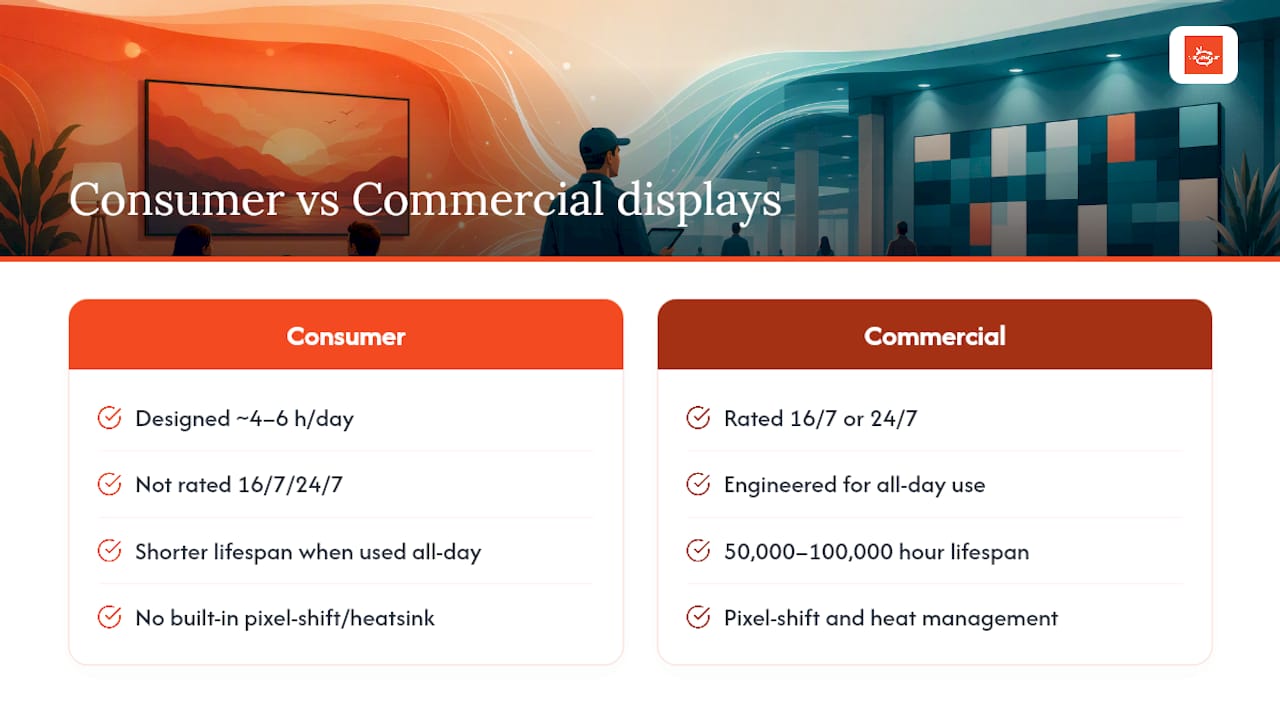
Static content adds a second risk: burn-in, also called image retention, where a logo or menu item leaves a ghost on the panel after prolonged display. Commercial units mitigate this with pixel-shifting technology and heat-management engineering built into the chassis. If you’re running a static menu board or a fixed promotional graphic for hours at a stretch, that mitigation is the difference between a screen that lasts years and one that shows a permanent shadow within months.
Connectivity, Remote Control, and CMS Integration
Managing one screen by walking up with a remote is fine. Managing ten screens across three locations that way is a part-time job nobody signed up for.
Commercial displays include professional control interfaces that consumer TVs skip entirely:
RS232 and LAN ports for wired control and network scheduling
OPS (Open Pluggable Specification) slots that accept a drop-in PC module instead of an external box
SDI inputs on higher-end units for professional video sources
Built-in SoC (system-on-chip) options that run signage software directly, without a separate media player
These interfaces let a content management system push updates, run schedules, and flag a screen that’s gone offline, all without anyone visiting the site. That remote visibility is what turns a pile of screens into an actual network instead of a maintenance headache.
Pro Tip: If you’re deploying more than two or three screens, prioritize a built-in SoC or OPS slot over a cheaper display with no integration options. The labor savings from remote updates will outweigh the hardware price difference within the first year.
Mounting, Orientation, and Thermal Design
Portrait mounting is where consumer TVs fail most visibly. Most aren’t engineered to run vertically for extended periods, since gravity and airflow inside the chassis were designed around horizontal use. Commercial displays are built with portrait mode in mind, from mounting points to internal cooling paths.
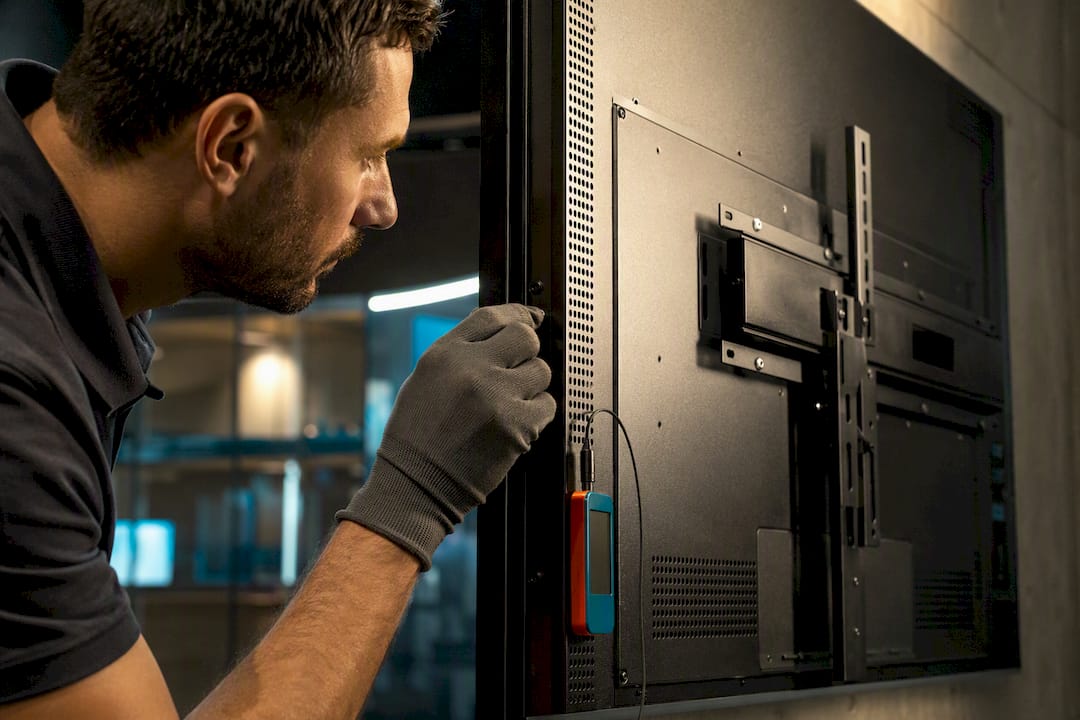
Thermal design matters just as much. Consumer TVs rely on passive cooling meant for a few hours of evening use, not a full workday of continuous operation. Commercial panels use active cooling and chassis designs that handle sustained heat without shortening the panel’s life. For video walls or multi-screen layouts, commercial units also offer narrower bezels and more consistent color matching across units, which matters once screens sit side by side. For menu boards and other portrait installs, matching the panel to the orientation from day one avoids a costly remount later.
Warranty, Service, and What TCO Really Costs
Warranty length is a fast way to spot which category a display belongs to. Consumer TVs typically carry one to two years of coverage, and that coverage is often voided once the manufacturer learns the unit ran in a business setting rather than a living room. Commercial displays generally carry three years or more, frequently with onsite service or advanced exchange, meaning a failed unit gets swapped fast instead of shipped out for repair.
Total cost of ownership is where the sticker price stops telling the whole story. A consumer TV might cost half as much upfront, but industry analysis shows commercial hardware often delivers lower total cost of ownership once you factor in replacements, downtime, and the labor of managing failures.
To calculate TCO honestly, add up:
Purchase price per unit
Expected replacement frequency based on duty cycle
Downtime cost (lost promotion visibility, staff time troubleshooting)
Admin labor for updates and monitoring
Commercial hardware costing two to four times more upfront routinely wins this calculation over a multi-year deployment, especially once you’re running more than a handful of screens.
When a Consumer TV Actually Makes Sense
Consumer TVs aren’t wrong for every business use. A back-office dashboard showing sales numbers to staff only, in a room with controlled lighting, running a few hours a day, is a reasonable fit. The same goes for a temporary display at a one-time event.
If you go this route, protect yourself:
Limit daily runtime and avoid leaving one static image on screen for hours
Rotate content regularly to reduce burn-in risk
Check whether the manufacturer’s warranty explicitly covers commercial or business use before you rely on it
Add third-party monitoring if the built-in remote features are limited
The risk is real: a warranty voided the moment support finds out the screen runs in a shop rather than a home, and a panel life measured in months rather than years under always-on use.
Decision Checklist: Choosing the Right Display Class
Run through this before signing a purchase order:
Confirm the environment. Is the screen in direct light, under storefront glass, or in a dim interior room?
Confirm runtime. Will it run under 8 hours a day, or closer to 16 or 24?
Confirm orientation. Landscape or portrait, and for how long each day?
Set a nit requirement. Match the number to the ambient light, not the cheapest option on the shelf.
Ask about warranty terms. Does it explicitly cover commercial or business deployment?
Ask about remote management. Can the vendor confirm RS232, LAN, or OPS support, and does it pair with your signage platform?
Calculate TCO, not just sticker price, across a 3 to 5 year horizon.
On vendor calls, ask directly: What’s the duty-cycle rating? What nit level was actually measured, not just advertised? Does the warranty cover business use? Can the unit be monitored remotely?
Score what you hear: if the answers land at 16/7+ duty cycle, 450+ nits, and a business-rated warranty, it’s commercial recommended. Anything below that with light, short-hour, single-screen use is consumer ok. Window-facing or outdoor with heavy foot traffic pushes you to high-brightness commercial required.
Certification Standards and Compliance for Commercial Displays
Commercial displays generally carry a heavier certification load than consumer TVs, reflecting their use in public and often regulated spaces. Expect UL or ETL safety certification for electrical compliance, FCC certification for electromagnetic interference in the US, and Energy Star ratings where efficiency claims matter for procurement or facility budgets.
Larger commercial deployments, particularly in retail, healthcare, or transit environments, sometimes also require ADA-related considerations for mounting height and viewing accessibility, along with fire-safety ratings tied to the materials used in the chassis and mounting hardware. Consumer TVs typically meet baseline consumer safety certification but rarely carry the documentation a commercial buyer or building inspector might ask for during a facilities review.
For facility managers, this matters practically at two points: procurement and insurance. Some commercial leases and insurance policies specify that installed electronics meet commercial-grade certification, not just consumer safety standards. If you’re mounting screens in a shared retail space, a franchise location, or a leased office, ask your vendor for certification documentation upfront rather than discovering a gap during an audit or after an incident.
It’s also worth checking whether the display carries certification specific to its intended mounting orientation. A panel certified for landscape use only, then mounted in portrait for a menu board, can create a liability question that has nothing to do with picture quality and everything to do with how the unit was tested and approved.
Panel Durability and Build Quality: What’s Actually Different Inside
Open up a commercial display and a consumer TV side by side, and the construction differences explain most of the price gap. Commercial panels use industrial-grade components rated for continuous stress: capacitors, backlights, and driver boards chosen for longevity under heat and sustained voltage rather than a few hours of evening use.
The chassis itself tells the story too. Commercial units typically use heavier-gauge metal housings designed to dissipate heat and resist warping over years of operation, while consumer TVs favor thin plastic and minimal internal bracing to keep manufacturing costs down. That difference becomes obvious the moment a display gets mounted in portrait mode or exposed to dust and temperature swings in a retail or warehouse environment.
Backlight technology diverges as well. Commercial-grade LED backlights are generally rated for the same extended duty cycles as the rest of the panel, so brightness holds steady over years of daily operation instead of dimming noticeably within the first 12 to 18 months, which is common in consumer panels pushed into all-day commercial use.
Connector and port durability matters more than most buyers expect. A consumer TV’s HDMI or USB ports are built for occasional use, plugging in a game console or a laptop once in a while. Commercial displays are built for ports that stay connected to a media player or network cable permanently, with more robust internal connections that hold up under constant, unmoving load. None of this shows up on a spec sheet, but it’s exactly why a commercial display installed today is still running reliably in year five, while a consumer TV in the same role often needs replacing well before that.
Indoor vs Outdoor: How Environment Should Drive Your Choice
The single biggest variable in choosing a display isn’t budget, it’s where the screen physically lives. Indoor environments with controlled lighting, a back office, a hallway, a waiting room away from windows, are forgiving enough that even a mid-tier commercial unit performs well. The moment you introduce direct sunlight, storefront glass, or bright overhead retail lighting, the requirements shift sharply toward higher brightness and more durable hardware.
Outdoor signage is its own category entirely, and consumer TVs have no place there at all. Outdoor-rated displays need weatherproof enclosures, brightness in the 2,500 nit range or higher to compete with daylight, and temperature tolerance for both summer heat and winter cold, none of which a standard commercial indoor unit is built to handle either. If you’re considering an outdoor installation, you’re shopping a specialized outdoor-rated category, not a brighter version of an indoor commercial display.
Humidity and dust also factor in more than most buyers realize. A screen near a kitchen, a gym floor, or a loading dock deals with airborne grease, moisture, or particulate that a display in a clean retail showroom never encounters. Commercial units built for these environments often include sealed or semi-sealed designs that resist ingress, something you won’t find in consumer hardware at any price point.
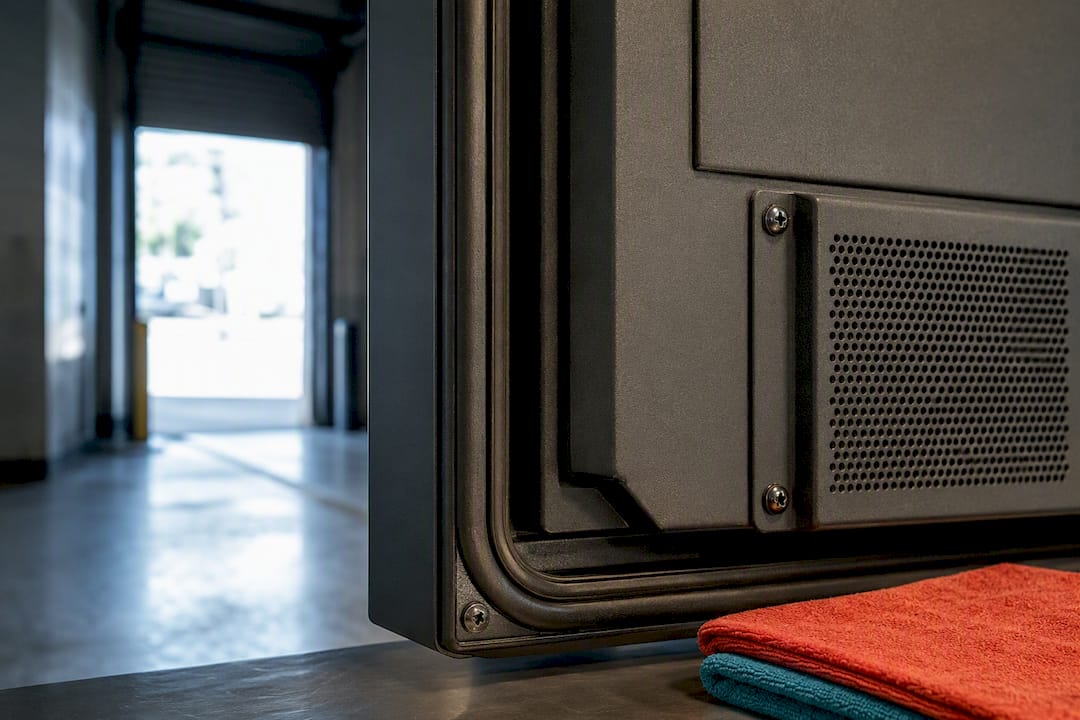
The practical takeaway: map every planned screen location by its lighting and environmental conditions before you buy a single unit. A gym floor, a restaurant window table, and a back-office break room each call for a different brightness and durability tier, even within the same building.
Resolution and Viewing Angle: Do They Matter as Much as Brightness?
Resolution gets a lot of attention in specs sheets, but for most signage use cases, it matters less than buyers assume. A 1080p display viewed from 6 feet away in a retail aisle looks nearly identical to a 4K panel at the same distance and size, since the human eye can’t resolve the extra pixel density at typical signage viewing distances. 4K becomes worth the premium mainly on very large screens viewed up close, like a lobby video wall or a menu board customers stand near while ordering.
Viewing angle is the specification that actually affects day-to-day signage performance more than resolution does. A display with a narrow viewing angle looks sharp head-on but washes out or shifts color when viewed from the side, a real problem for a menu board seen from a queue that wraps around a counter, or a lobby screen viewed at an angle from a reception desk. Commercial displays generally offer wider, more consistent viewing angles than budget consumer TVs, which are optimized for a single seating position directly in front of the screen.
For multi-screen video walls, viewing angle consistency across units matters even more than on any single display, since mismatched color shifts between adjacent panels are far more noticeable than they would be on a standalone screen. When comparing specs, prioritize viewing angle and brightness over chasing 4K resolution unless your installation genuinely puts viewers close enough to a large panel to notice the difference.
Energy Use: What Running Screens All Day Actually Costs
Running a display 16 or 24 hours a day instead of the 4 to 6 hours a typical living room TV sees changes the energy math considerably, and it’s worth factoring into your comparison, not just your purchase price. Commercial displays are generally engineered for efficiency at sustained brightness levels, since manufacturers know their panels will run continuously rather than for an evening.
Consumer TVs pushed into all-day commercial use often consume more power than their spec sheet suggests, partly because they’re not optimized for sustained peak brightness the way a commercial panel is. Running a consumer TV at maximum brightness for 16 hours daily to fight ambient light, something it wasn’t designed to sustain, tends to draw more power relative to its output than a commercial unit built for that exact brightness level as a baseline operating condition.
Energy Star certification, where available, gives a comparable efficiency benchmark across models, and it’s worth checking for any deployment spanning more than a handful of screens, since the electricity cost compounds across a multi-location network. For a facility manager running signage across five, ten, or fifty locations, the difference between an efficient and inefficient panel, multiplied across every screen and every operating hour, becomes a real line item on the utility bill, not a rounding error.
How the Right CMS Changes What Hardware You Actually Need
Once you know which display class fits your environment, the software running on it changes what you actually need from the hardware. A platform like Signstream shifts priorities away from manual updates and toward centralized health checks: instead of walking to each screen, you monitor and push content from any device.
Clients running class schedules and promotions through this kind of setup have reported a 25% rise in class attendance after switching to real-time updates. The sensible order: define your content and runtime needs first, pick the display class that fits your environment, then match a CMS built to manage it remotely.
— DKS
A Software-First Way to Roll Out Signage
Buying displays first and figuring out management later is how a lot of signage projects turn into an ongoing headache. Some digital signage platforms offer remote control over unlimited screens, real-time content updates from any device, and built-in analytics, all managed from one place, regardless of which commercial display class you choose to install.

That matters most once you’re past a single screen; for multi-location brands managing signage use cases, a tailored signage services solution can streamline scaling and operations. A gym running class promotions across five locations, or a restaurant group updating menu boards nightly, doesn’t want staff walking to each unit with a remote. Choosing the platform first, then standardizing hardware around what it supports, tends to cut down on the operational mistakes that come with mismatched systems. Signstream also includes an ad exchange marketplace so your screens can cross-promote with other local businesses and generate revenue instead of just running your own content.
If you’re planning a rollout across multiple screens or locations, see how the platform works remotely before you finalize your hardware order. It’s a faster way to know what your displays actually need to support.
Sources
For deeper technical reading on the specifications covered here, the AVIXA Xchange comparison of smart TVs and commercial displays breaks down brightness and control interfaces in more depth. ViewSonic’s commercial display buyer’s guide covers duty cycle and warranty terms. Sharp’s comparison of the top differences is a quick reference for procurement teams verifying specs before purchase.
Recommended
Comments