

Timezone-Aware Scheduling for Screens Across Locations

Timezone-aware scheduling means every playlist, promotion and class schedule is tied to a real place, so it changes at the right local time on each screen, even when your locations sit in different time zones or the clocks change. For a multi-site operator, the practical answer is to schedule against each site’s named time zone, decide up front whether a campaign follows local time or goes live everywhere at once, and test the two daylight saving boundaries before they arrive. With SignStream you can manage unlimited screens from any device, which keeps one schedule plan in one place instead of a patchwork of per-site settings.
TL;DR
Schedule against a named location (for example America/Chicago), never an abbreviation such as CST or an offset such as UTC-6.
Decide per campaign: “9 a.m. at every site” or “one instant for every site.” Write the choice down with the approval owner.
Most of the U.S. changes clocks on the second Sunday in March and the first Sunday in November, but Arizona and Hawaii do not, so a single “Eastern” rule is not enough.
Check the next run times of every schedule, then pilot one screen per time zone before rolling out.
Put screens that share a rule on one channel, so one edit reaches all of them.
Table of Contents
What timezone-aware scheduling actually means
A schedule has two parts: what plays and when it plays. “When” is where things break. A lunch menu that should appear at 11:00 a.m. is not a single moment in time. It is 11:00 a.m. in Boston, 11:00 a.m. in Denver and 11:00 a.m. in Phoenix, three different instants.
Software solves this by storing moments in a neutral way, usually UTC (Coordinated Universal Time, the world’s reference clock), and then applying a time zone rule to show or trigger them locally. Apache Airflow’s documentation describes exactly this split: it stores datetimes internally in UTC while still allowing schedules that depend on a time zone. UTC is good for storage. A local rule is what you need when a human says “open at 6 a.m.”
Three ways to express a time are worth telling apart:
Method | Example | What happens at daylight saving |
Fixed offset | UTC-5 | Never adjusts. Your 6 a.m. promo slides to 5 a.m. or 7 a.m. local time after a clock change. |
Abbreviation | EST, CST | Ambiguous and often treated as fixed. Does not reliably follow the switch to daylight time. |
Named location | America/New_York | Follows the region’s actual rules, including the spring and fall changes. |
The named location is what you want. RegScale’s scheduling guide makes the same point for cron jobs: it advises IANA region names rather than abbreviations like EST or PST so daylight saving is handled correctly. IANA is the shared database of time zone rules that most modern systems use, and a region name is simply an entry in it.
Why U.S. operators get caught
The United States is not one rule. Under the Uniform Time Act, states may exempt themselves from daylight saving, and Hawaii, most of Arizona and the U.S. territories do not observe it. States that do observe it must start and end on the federally set dates, which fall on the second Sunday in March and the first Sunday in November, at 2:00 a.m. local time.
That creates some real situations for the people reading this:
A franchise owner with locations in Phoenix and Los Angeles. In winter they share the same clock time. In summer, Phoenix is an hour ahead of Los Angeles. A “same time everywhere” assumption that was right in January is wrong in July.
A tourism group linking venues in several states. Screens in a border region may sit in different zones within the same county. A single regional label hides this.
A country club with a Sunday brunch push. The clock change happens on a Sunday at 2 a.m., so weekend morning content is the first thing to go wrong.
A fitness operator with early classes. A 5:30 a.m. class schedule that flips late is noticed by members right away.
None of this is hard once you plan for it. The trouble comes from discovering it on the Sunday it happens.
Step 1: Decide whether each campaign follows local time or a single moment
Before you touch a calendar, answer one question per campaign: should it run at the same local hour at every site, or at the same instant everywhere?
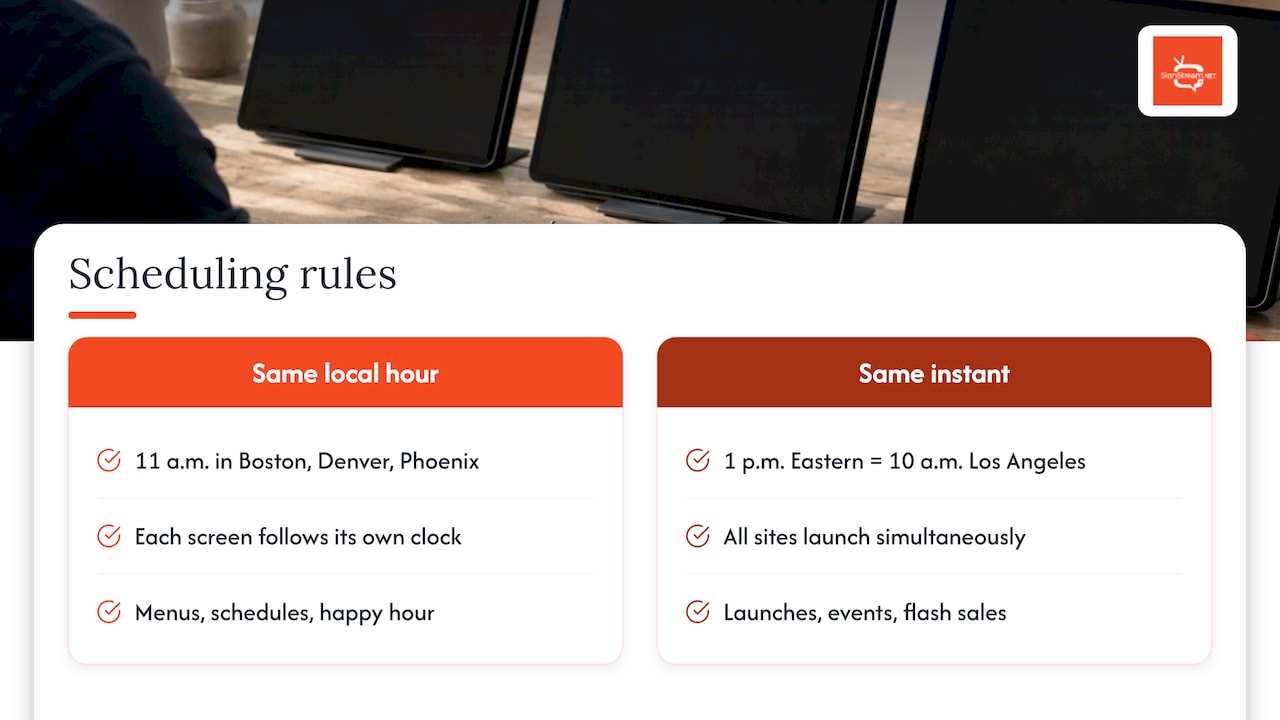
Same local hour suits most day-to-day content: menus, class schedules, happy hour offers, opening hours, retail promotions that start “when the doors open.” Each screen follows its own clock.
Same instant suits a coordinated moment: a franchise-wide product launch announced at one national time, a live event kickoff, a flash sale tied to an online release. In this case a 1 p.m. Eastern launch is 10 a.m. in Los Angeles, and everyone should know that.
Write down the choice, the list of affected sites and the person who approves it. It takes two minutes and prevents the most common argument in multi-site marketing: “I thought it went live at 9.”
This is also where grouping pays off. When you put screens that follow the same rule on the same channel, you edit once instead of ten times. SignStream is built around custom channels you manage remotely, and there is no per-screen fee for adding more screens, so organizing by rule rather than by budget is realistic. Our digital signage scheduling guide walks through building those groups.
Step 2: Set the time zone on the schedule and on the screen
Two clocks are involved: the one your schedule uses and the one the screen or player uses. If they disagree, the screen decides what the audience sees.
For each location, record:
The named time zone (America/New_York, America/Chicago, America/Denver, America/Phoenix, America/Los_Angeles, Pacific/Honolulu and so on).
Whether the site observes daylight saving.
The screen or app that plays the content, and when it was last replaced or reset.
The third item matters more than it seems. A swapped smart TV or a freshly reset device can come back on a default clock setting. Because SignStream runs through smart TV apps and browsers on hardware you already own, a replacement screen is a quick change, so add “confirm the time zone” to your replacement checklist rather than assuming it carried over.
Avoid typing offsets into any scheduling field if a location picker is available. If a tool only accepts an offset, treat it as a warning sign for sites that observe daylight saving and re-review it twice a year.
Step 3: Build the schedule around the moments that matter
Good schedules separate dayparts (blocks like breakfast, lunch, happy hour, evening classes) from special dates (a holiday menu, a tournament weekend). Dayparts repeat. Special dates override them.
A few rules keep this clean:
Use start times that make sense in local life. “11:00 a.m.” is a human rule. “16:00 UTC” is not.
Always have a default. Something should play when no daypart applies, so a screen never goes dark between blocks.
Check blocks that cross midnight. A late-night menu running 10 p.m. to 2 a.m. is two calendar days in one block, and it is one of the easier things to misconfigure.
Avoid parking important changes between 1 a.m. and 3 a.m. on clock-change Sundays. That window is where the local time can be skipped or repeated.
SignStream lets you schedule content and update multiple screens instantly from any device, so a fix after you spot a mistake reaches every screen on the channel in one edit. For a deeper method on stacking playlists and priorities, see our playlist-first approach to power scheduling.
Step 4: Plan for daylight saving boundaries
Twice a year, a local clock does something unusual.
Spring forward: at 2:00 a.m. the clock jumps to 3:00 a.m. The time between 2:00 and 2:59 does not exist that day.
Fall back: at 2:00 a.m. the clock returns to 1:00 a.m. The hour from 1:00 to 1:59 happens twice.
Any schedule that fires inside those hours has to decide what to do. A job set for 2:30 a.m. in spring might be skipped, shifted to 3:00 a.m., or run late. A job set for 1:30 a.m. in fall might run once or twice. Different systems make different choices, so you should know which one you have before it matters.
The cleanest protection is to avoid the ambiguity. Almost no signage content needs to change at 2:30 a.m. If you keep your daypart boundaries outside the 1 to 3 a.m. window on those two Sundays, the behavior of the skipped or repeated hour stops mattering. Where an overnight change is unavoidable, test it.
Developers handle this by simulating the boundary instead of waiting for it. Quartz.NET’s testing documentation shows how to set a fake clock before a transition, use a real time zone and compute when triggers would fire, and it suggests checking both what happens with a nonexistent spring time and whether a repeated fall time fires once or twice. You do not need to write code to borrow the idea: pick the hour that gets skipped or repeated, and write down what you expect each affected screen to show before and after.
After each change, glance at the screens that matter most on the Sunday morning itself, especially those in places that did not change their clocks. Those are the ones most likely to look “wrong” to a manager who assumed everything moved together.
Step 5: Check the schedule’s time zone and its next runs
A schedule that looks right on the page may not behave right. The most reliable habit is to ask the tool when the next occurrence will happen, in which time zone, and compare it with what you intended.
RegScale’s guide recommends validating the expression and inspecting the computed next-run output rather than trusting how a schedule reads, and notes that its listing shows next runs in UTC. That is a good model for any scheduler: look at the computed result, and be aware which clock it is displayed in. Airflow’s documentation likewise notes that its user interface displays times in UTC, which is a reminder that a display time and a trigger time can use different clocks.
If you or your IT contact work with cron (the scheduling syntax used on many servers, where jobs are often interpreted in UTC unless a zone is set), the same logic applies. A cron line that reads “0 6 * * *” means 6 a.m. in whatever zone the system assumes, and that may not be the one you are standing in.
A quick verification routine for any recurring schedule:
Read the time zone attached to the schedule, not just the time.
Find the next two or three upcoming occurrences and confirm each one in the local time of the screen.
Check one date on each side of a daylight saving change.
Confirm the same schedule on a screen in a site that does not observe daylight saving.
It takes minutes per channel and removes most surprises.
Step 6: Pilot one screen per time zone, then roll out
With ten or more sites, do not publish everywhere on the first try. Choose one screen in each time zone you serve, push the new schedule to those, and watch the boundaries: the start of a daypart, the end of it, the block that crosses midnight, and what plays when nothing is scheduled. Then reboot one of the pilot screens and confirm it comes back with the right content and the right clock.
Keep a short log with the screen, the channel, the time zone, the publish time, what you expected and what actually played. A one-page record is enough. When something goes wrong in a month, you will be glad it exists.
If you manage content across many sites and platforms, a broader process helps too. This overview of multi-location content automation covers how to pilot and standardize content across locations, and the same discipline applies to screens.
For offline conditions, see how to keep screens playing when a connection drops in our offline playback essentials. And if your content changes often, a clear content workflow for fresh screens keeps approvals from piling up before clock changes.
Scheduling patterns by type of business
Restaurants. Tie menu changes to local mealtimes. Breakfast to lunch to dinner should switch on the local clock, and a multi-state group should keep one channel per zone group. Specials that need to go up quickly are an edit from your phone.
Fitness centers. Class schedules are the most time-critical content on the wall. Show today’s classes by local time, and keep early-morning blocks away from the clock-change window. One SignStream client reported a 25% rise in class attendance after implementation.
Country clubs. Brunch, tee-time notices, event nights and pool hours all follow a local rhythm. Schedule seasonal changes (pool opening, holiday hours) as special dates that override the regular dayparts.
Offices. Announcements and room information are usually for a single site, so the main risk is a satellite office in another zone. Give it its own channel.
Retail and franchises. Promotions that start when doors open should follow each store’s local time. National launches that must land together should be set as one instant, with the local equivalents listed in your approval note.
Tourism networks. A network of screens across several businesses may cover more than one zone and mix sites that observe daylight saving with sites that do not. Name the zone for each business, and keep shared content, such as regional events, on one channel.
Most scheduling trouble is not technical. It is a missing decision: nobody wrote down whether a promotion follows each site’s clock or one national moment. When that decision is made, the rest is ordinary housekeeping. We built SignStream so that managing a network feels like managing one screen. You update from your phone or browser, content reaches every screen on a channel, and there is no per-screen fee, so you can group screens by how they should behave instead of by how many you can afford. Organize by rule, name the time zone, and keep early-morning changes away from the clock-change hours. The same simplicity matters for the people running your locations. A front-desk manager at a club or a shift lead at a restaurant should not need technical training to fix a menu at 10:45 a.m. When the interface is easy, the schedule stays accurate. DKS
What we have learned about scheduling across zones
Run your schedule on SignStream
If you manage screens in more than one place, SignStream gives you cloud-based scheduling, mobile and browser control, analytics and unlimited screens from one account. The SIGNSTREAM NETWORK plan is $10 per month per channel, and a CUSTOM CHANNEL is $105 per month per channel. You can see both on the pricing page, and if you would rather have help with setup, content and ongoing management, the how it works page lists those services.
Our smart TV apps work with the hardware you already have, so adding a location in another time zone does not mean replacing equipment.
FAQ
Are cron jobs in UTC?
It depends on the system. Many schedulers default to UTC unless a time zone is set for the job, and RegScale’s documentation says its cron jobs default to UTC unless a per-job time zone is set. Always check which zone your scheduler assumes and look at the computed next run.
What is the difference between UTC and a named time zone?
UTC is a single global reference with no daylight saving. A named time zone, such as America/Denver, carries the local rules, including when clocks change. Store moments in UTC if you are building software, but express a human schedule like “open at 6 a.m.” in the named zone of the place.
What happens to a schedule at 2 a.m. when clocks change?
In spring, 2:00 to 2:59 a.m. does not exist, and in fall, 1:00 to 1:59 a.m. happens twice. A schedule firing in those hours may be skipped, shifted or repeated depending on the system. The simplest fix is to keep daypart changes outside the 1 to 3 a.m. window on those Sundays.
Do all U.S. locations change their clocks?
No. Hawaii, most of Arizona and the U.S. territories do not observe daylight saving. If your network includes any of them, set their time zone separately and recheck it after each clock change elsewhere.
How do I schedule one promotion for several time zones?
Choose whether it follows local time or a single moment. For local time, apply the same rule to screens grouped by zone. For a single moment, convert it to each zone, list the local equivalents in your approval note and pilot one screen per zone first.
Sources
Recommended
Comments