

Event Calendar TV Display: Set Up Screens That Fill Your Events
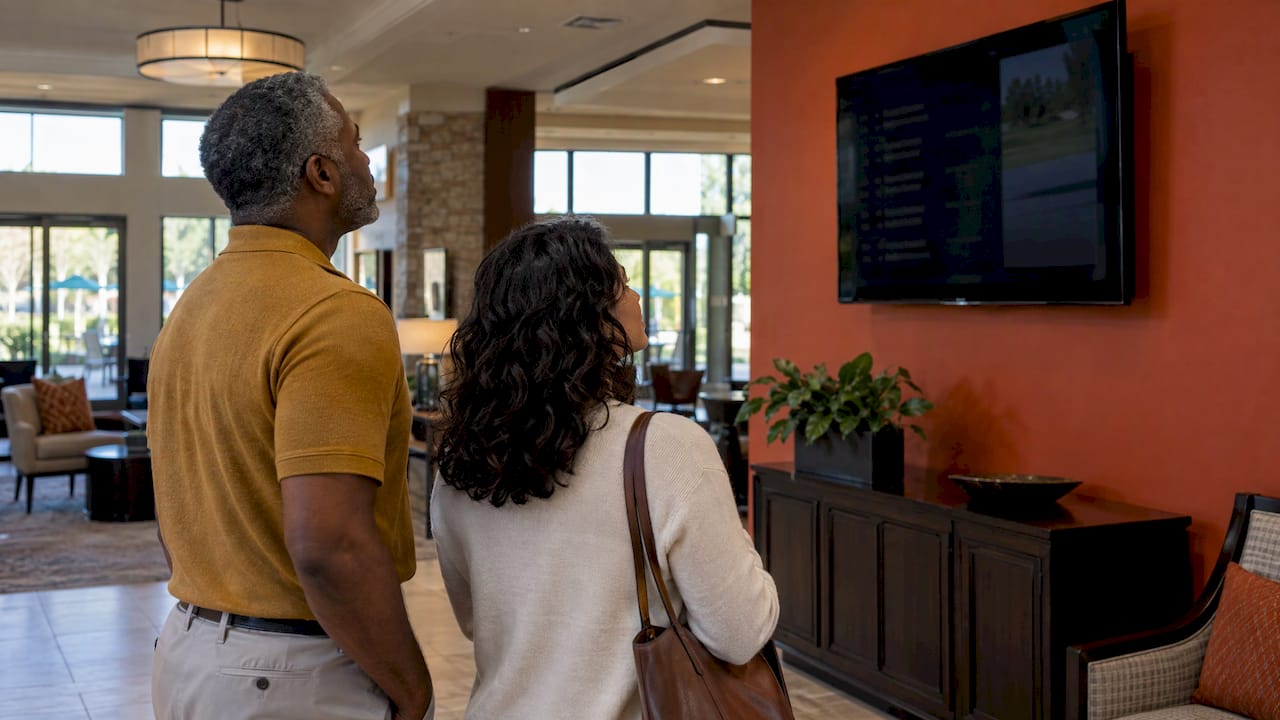
An event calendar TV display works when it does three things: it is readable from across the room, it is always current, and it reaches every screen where your people actually look. For a business, the simplest way to get there is a cloud-based signage platform that lets you build the calendar once and update every TV from your phone or browser. That is what SignStream does, on any smart TV, with no per-screen fees.
This guide covers what an event calendar display is, what you need to run one, which layouts read well on a TV, how to set it up step by step, and how to keep it accurate across rooms and locations. It is written for club managers, restaurant owners, fitness operators, office administrators, retail managers, franchise owners and tourism groups.
TL;DR
An event calendar TV display shows upcoming events, classes, specials or meetings on a screen people pass or wait near, so they see what is happening without asking.
You need a screen, a smart TV app or small media player, a network connection and a cloud platform that lets you change content from anywhere.
Show fewer items in larger type: a short upcoming list beats a full month grid on almost every TV.
The setup is a repeatable routine: connect or build the calendar, choose a layout, add it to a playlist or channel, assign it to screens, then schedule updates.
SignStream’s Network plan is $10 per month per channel, and you can deploy it on unlimited screens.
Table of Contents
What an event calendar TV display actually is
It is a screen, usually a wall-mounted TV, that shows what is coming up at your location. At a country club that might be the wine dinner on Friday, the junior tennis clinic on Saturday and the board meeting on Tuesday. In a gym it is the class schedule with start times and instructors. In an office lobby it is the all-hands, the training session and which conference rooms are booked. In a restaurant it is trivia night, live music and the seasonal tasting menu.
The search results for this topic are full of home products: family wall calendars, touchscreen planners, printable templates. Those are built for one household, one screen and one person updating it. A business has different needs. Your audience is members, guests and staff who glance at the screen for a few seconds. Your content changes weekly or daily. And you may have several screens, or several locations, that must always agree.
Why a TV beats a printed flyer or a bulletin board
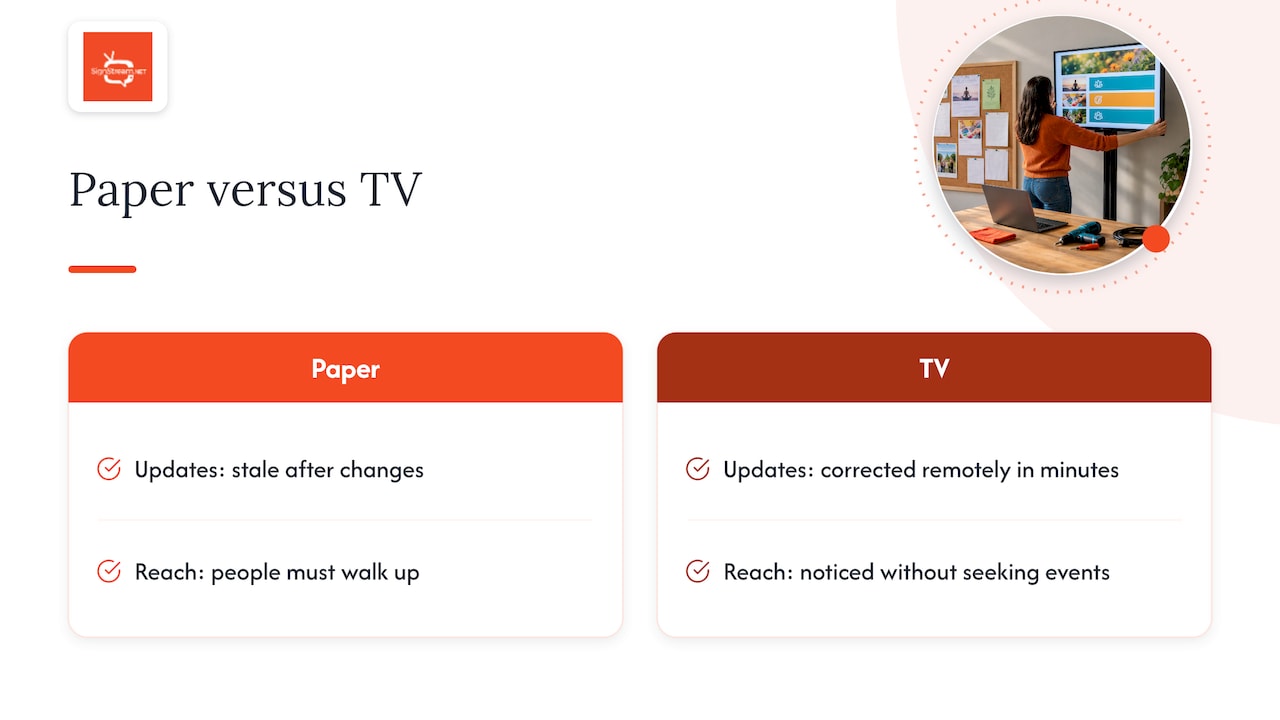
Paper calendars go stale the moment something changes. A class moves, a guest chef cancels, a room gets double-booked, and the printed sheet is wrong until someone walks over and swaps it. A TV can be corrected in minutes from wherever you are.
There is also a reach difference. A bulletin board is read by people who walk up to it. A screen near the entrance, the bar, the locker room or the waiting area is seen by people who were not looking for events at all. That is where promotions for the next event do their work.
SignStream’s customers include elite sports clubs, restaurants and retailers, and one reported a 25% rise in class attendance after putting schedules on screens. Results will depend on your members and your content, but the pattern is clear: events people see are events people attend.
What you need to run one
The equipment list is short.
1. A screen
Any TV with an HDMI input works. A commercial display is built for long hours, but many businesses start with the consumer TVs they already own. Landscape orientation is standard for a calendar. Portrait works well for a narrow hallway or a door-side schedule.
2. A way to run the app
Smart TVs can run a signage app directly. If a TV is older, a small streaming stick or media player plugged into HDMI does the same job. SignStream is hardware agnostic, with apps for smart TVs and tablets, so you are not locked into a proprietary box. Our Google TV digital signage guide walks through that path.
3. A network connection
A cloud platform needs the screen to be online, so Wi-Fi or Ethernet at each location. Ethernet is steadier for screens that run all day. Content is stored in the cloud, so you are not carrying USB drives from room to room.
4. A platform you can update from anywhere
This is the piece that decides whether your calendar stays accurate. If you must walk to a computer attached to the TV to change anything, the calendar will go stale. With SignStream you update multiple screens instantly from any device, using a browser or your phone.
Layouts that read well from across the room
The most common mistake is designing the calendar like a desk planner. A full month grid with tiny cells looks tidy on a laptop and is unreadable from ten feet away. Pick a layout by how long people will look at the screen.
Layout | Best for | Watch out for |
Upcoming list (next 4 to 6 events) | Lobbies, entrances, bars, waiting areas | Keep titles short so each event fits on one line |
Today’s schedule | Gyms, meeting rooms, spas, tour desks | Remove past items so the screen does not fill with finished events |
Week view | Staff rooms, offices, clubhouse halls | Limit to the key events or text becomes too small |
Featured event slide | Special dinners, tournaments, seasonal launches | One message per slide, with a date and a call to action |
Month grid | Rarely; close-range viewing only | Cells shrink quickly and details disappear |
A few rules of thumb hold across all of them:
Lead with the date and time. Put them in the largest type after the event name.
Use high contrast. Light text on a dark background, or the reverse, with no busy photo behind the words.
Keep each event to a name, a time and a place. The detail belongs on a QR code, not on the screen.
Rotate rather than crowd. Two clean slides of five events each beat one slide of ten.
Test from the real viewing spot. Stand where members stand. If you squint, the type is too small.
Use QR codes for the details
A TV is a glance medium. When someone wants to register for the clinic or reserve a table for trivia night, a dynamic QR code takes them straight to the right page. SignStream supports dynamic QR codes, so you can point a code to a new registration link without redesigning the slide.
How to set it up, step by step
Here is the routine, with where it usually goes wrong at each step.
Step 1: Decide what the screen is for
Choose one job per screen: events, today’s classes, menu specials or room bookings. Screens that try to do everything do none of it well. List the event types you want to show and who needs to see them.
Where it goes wrong: mixing internal items, like staff meetings, with member-facing ones on a public screen.
Step 2: Set up your source of truth
Decide where event details live. Many organizations already keep them in a shared calendar. A good habit is to keep one master list so the TV, your website and your email all draw from the same facts. If you want help planning what to publish and when, our 30, 60, 90 day content calendar for managers lays out a cadence, and this piece on why content calendars matter shows how a planned calendar keeps publishing consistent.
Where it goes wrong: event details held in three places, so each screen shows something different.
Step 3: Build the display
In SignStream you work with templates, scheduling and custom channels. Start from a template, choose one of the layouts above, and add your events. A channel is the stream of content a group of screens plays, so one calendar channel can power the lobby, the bar and the locker room together.
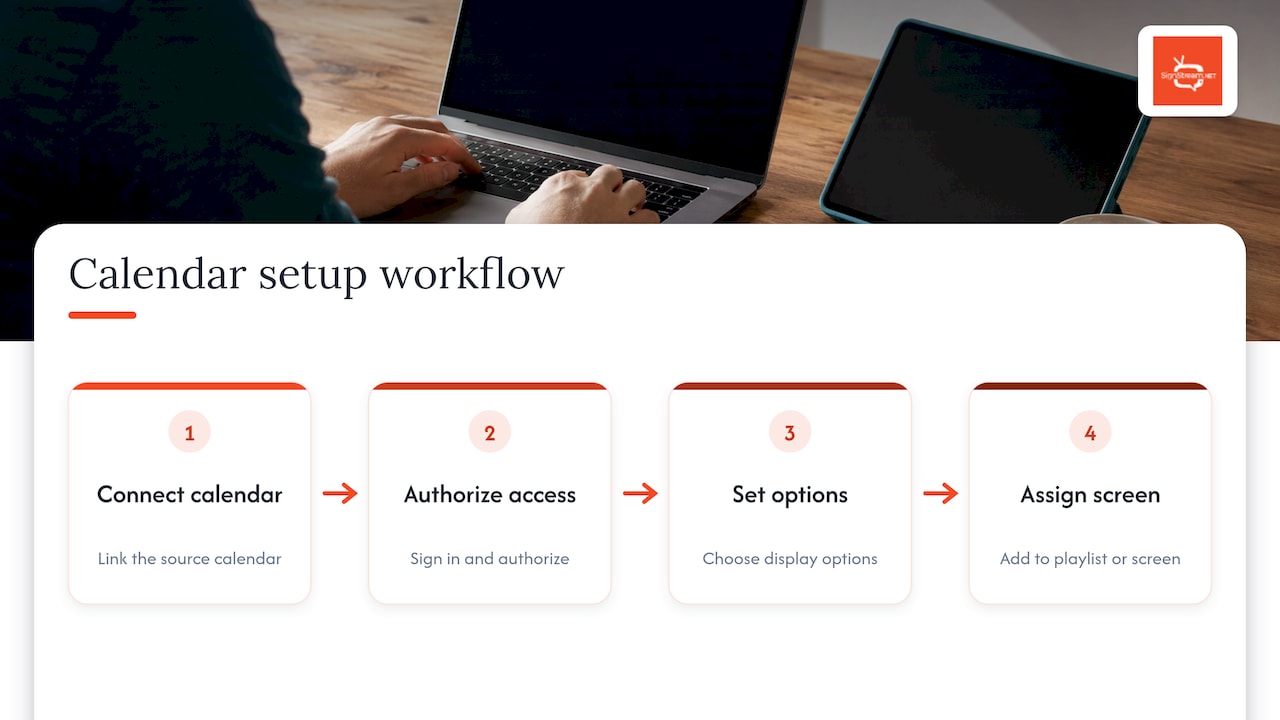
For reference, the general workflow on other platforms is similar. One university’s setup guide describes connecting a calendar, signing in and authorizing it, setting display options, then adding the calendar to a playlist or assigning it to a screen. Once connected, changes to the source calendar appear on the screens automatically. The same logic applies to any well-run calendar display: connect once, assign to screens, and let updates flow.
Where it goes wrong: too much text, no date format consistency, and event names that wrap onto three lines.
Step 4: Assign it to screens
Put the calendar on the channel and point each screen at that channel. Because SignStream deploys on unlimited screens at no extra charge, adding the fifth or fiftieth TV does not change your bill. Pricing is per channel, not per screen.
Where it goes wrong: assigning the same content to screens with different audiences, such as the member lounge and the staff break room.
Step 5: Schedule the rotation
Give the calendar the screen time it deserves. A good pattern is the calendar for 15 to 20 seconds, then a featured event, then other content such as amenities or specials, then back to the calendar. Scheduling lets you show breakfast items in the morning, class lists during peak hours and the evening event line-up after 4 p.m.
Where it goes wrong: leaving a rotation running so long that the calendar appears once every few minutes and no one catches it.
Step 6: Check it on the floor
Walk to the farthest seat or the back of the room and read the screen. Fix anything you cannot read in three seconds. Then set a weekly time, perhaps Monday morning, to review the next two weeks of events.
Keeping every screen current
An accurate calendar is a habit, not a one-time project. The cloud setup makes the habit light.
Update from your phone. When the instructor changes or the event moves, you correct it where you stand, and the screens follow. There is no technical background required, so a front-desk employee can own it as well as a manager.
Use one channel for many screens. Edit once and every TV on that channel updates. This is what makes multi-room clubs and multi-location franchises workable. A franchise owner can keep a brand-wide channel for promotions and local events on a separate channel for each store.
Remove the past. Expired events are the clearest sign a screen is neglected. Use scheduling to set start and end dates when you add an event, so it drops off by itself.
Review analytics. SignStream includes analytics so you can see how your content performs and adjust. If an event slide consistently outperforms the rest, make more like it.
How different businesses use an event calendar screen
Country clubs
Members want to know about dinners, tournaments, lessons and committee meetings, and the clubhouse is where they pass through. Put an upcoming list near the entrance and the pro shop, and a featured slide for the major events of the month. Our guide to showcasing club amenities on screens pairs well with the calendar, so the screen mixes events with the services members can use today.
Restaurants and bars
Guests are seated, waiting or at the bar, which gives you a captive few minutes. Show live music, trivia, happy hour windows and the seasonal menu. See our guides to digital signage for restaurants, bar TV setup and seasonal menus on digital displays.
Fitness centers
The class schedule is your most-read content. Show today’s classes with time, instructor and room, and keep the weekly view for the lobby. A last-minute substitution takes seconds to fix, which means members stop arriving for classes that have changed.
Offices
A lobby or hallway screen can carry company events, training sessions, town halls and room bookings. A dedicated channel for meeting rooms keeps the information specific to the people in the building. See our custom TV channel page for how that works.
Retail and franchises
In-store events, product launches and sales windows belong on the screen at the entrance and checkout. For franchises, a central team can send the brand-wide calendar to every location while each store adds its own local events.
Tourism groups
A connected network of screens across hotels, attractions, restaurants and visitor centers can share one regional events calendar. Visitors see what is on tonight and this weekend wherever they are, and each partner sends traffic to the others. SignStream’s ad exchange marketplace lets local businesses cross-promote on one another’s screens, and lets you earn from your own.
Common mistakes to avoid
Too much on screen. If a slide has more than six lines of event text, split it.
Stale content. An event from last week costs you credibility with every glance.
No call to action. Add a QR code, a phone number or a front desk prompt.
One screen, one person. If only one employee knows how to update the display, it stops being updated when they are away. Pick a platform that anyone on the team can use.
Choosing on price per screen. Per-screen fees multiply as you grow. Our guide to mistakes to avoid when choosing a platform covers this and more.
Perspective: why we build calendars on channels, not screens
We see an event calendar as a message, not a gadget. The question is never which TV to buy, it is who needs to know what, and where they will be standing when they see it. That is why SignStream is organized around channels. You build a message once, such as this week’s classes or this month’s club events, and send it to as many screens as you like. We do not charge per screen, because a calendar that reaches the lobby but not the locker room is only half doing its job. We also built the platform so that the person closest to the news can change it. A front-desk employee, a restaurant manager or a franchise coordinator can correct a time from a phone, and the screens follow. When updating takes seconds, calendars stay accurate, and members learn to trust the screen. Finally, a screen is more than a notice board. With our ad exchange marketplace you can cross-promote with neighboring businesses and earn from your own screens, so the TV on your wall becomes a connection point and a revenue source. DKS
Put your event calendar on screens with SignStream
If you want a calendar on your TVs without buying new hardware or paying per screen, start with the SignStream Network plan at $10 per month per channel, with unlimited screens. If you need a fully tailored channel, the Custom Channel plan is $105 per month per channel. Both are listed on our pricing page.
Would you prefer help with the screens themselves? We also offer hardware and screen installations, content and design, and ongoing management, described on our how it works page.
You can see the full platform, including smart TV apps, templates, scheduling and analytics, on the SignStream home page.
FAQ
What do I need to show an event calendar on a TV?
You need a TV with an HDMI input, a smart TV app or a small media player, an internet connection and a cloud signage platform. SignStream runs on smart TVs and tablets, so most businesses can use screens they already own.
Can I show the same calendar on multiple TVs?
Yes. Put the calendar on one channel and assign that channel to every screen that should show it. With SignStream you can deploy on unlimited screens, and a change you make once appears on all of them.
How many events should I show at once?
Four to six upcoming events on a single slide is a good range for most lobbies and waiting areas. If you have more, split them across two slides in a rotation, and keep each event to a name, a time and a place.
How often should I update the calendar?
Review it at least weekly, and correct it the moment something changes. Setting start and end dates on each event means past items leave the screen on their own.
Sources
Recommended
Comments