

Fire Screen Takeover Mode in Under 60 Seconds for Ops Admins

Screen takeover mode immediately interrupts scheduled playlists to display targeted full-screen content, whether that’s a promotion, an operational alert, or an emergency message. You’ll use it when something needs every screen’s attention right now instead of waiting for its slot in the rotation. But “instant” only holds up if you’ve done the groundwork first: pre-built templates, pre-cached media on every player, and a trigger process your team has actually practiced.
TL;DR:
Pre-cached content on local media players is critical for instant takeover activation, as fetching files during triggers causes delays or failures.
Building and testing templates, grouping compatible screens, and establishing multiple trigger methods in advance ensure reliable and fast emergency responses.
Manual triggers typically take 10 to 60 seconds, but with pre-caching and proper setup, enterprise alerts can activate in under 5 seconds.
The human factor, including operator login and network issues, often causes delays, so redundant workflows and monitoring are essential.
Effective takeover content must be high contrast, simple, and visually clear to ensure quick recognition and comprehension by viewers.
Table of Contents
How Screen Takeover Mode Works: Dashboards, Triggers, and Players
Every takeover runs through the same basic chain: a trigger source, a network connection, and a media player that renders the content. Understanding each link helps you spot where delays creep in.
Cloud dashboard — the primary control point where you build, schedule, and fire off a takeover across one screen or an entire network.
Mobile app trigger — lets a manager push an alert from the gym floor or restaurant kitchen without touching a computer.
API trigger — connects takeover events to outside systems, like a point-of-sale platform or a mass-notification service.
Media player — the physical or app-based device on each screen that receives and displays the takeover asset.
Network and content templates — the pathway and pre-built files that determine whether a takeover fires in seconds or stalls.
Manual activation through a dashboard or mobile app typically lands in the 10 to 60 second range, while enterprise alert systems built for emergencies can trigger in under 5 seconds. Media players also come with real constraints: not every player supports every file type, and screens grouped for a synchronized takeover need matching resolutions and durations to display cleanly together. If a player has to pull a new file from the cloud the moment a takeover fires, that’s exactly when lag or outright failure shows up.
Quick Setup Checklist to Enable Reliable Takeovers
Getting takeover mode ready before you need it is mostly a matter of sequencing. Work through these steps in order:
Build scenario templates in advance — create separate, ready-to-fire templates for promotions, operational updates, and emergencies so nobody is designing a screen under pressure.
Group your screens by compatibility — cluster players by hardware type and viewing context (sales floor, waiting area, entrance) so a takeover group displays consistently across every screen in it.
Pre-cache every takeover asset — push the files to local player storage during normal operation and confirm they’re actually stored, not just queued.
Document who can trigger what — write down authorized roles, backup contacts, and both a primary and secondary trigger path (mobile app, dashboard, API) in case one fails.
Set honest lead times — unless an asset is pre-cached and tested for instant activation, build in a buffer before a scheduled takeover goes live.
Pro Tip: Run a test takeover from a phone that isn’t your usual device. If a substitute manager can’t fire it in under a minute, your documentation has a gap.
Digital signage platforms describe this kind of interrupt scheduling consistently: playlists and override rules need to reach each player before the moment you need them, not during it. A content workflow built around this rhythm turns takeover mode from a scramble into a five-minute task.
Why Takeover Speed Varies and How to Protect It
Pre-caching is the single most important factor in whether a takeover fires instantly or lags. Content downloaded to a player’s local storage while it’s online and idle is ready the moment you trigger it. Content that still needs to be fetched from the cloud during the takeover itself is gambling on network conditions holding up, and that gamble is the leading cause of failed or delayed takeovers.
A handful of failure modes show up again and again:
A player goes offline overnight and never reconnects before the trigger fires.
A file downloads partially and the player displays a broken asset or falls back to the old playlist.
Screens in the same takeover group have mismatched resolutions, so the layout breaks on half of them.
The human step, someone logging into the dashboard, finding the right template, hitting send, adds more delay than the software itself.
Manual takeovers through a dashboard or mobile app commonly activate in 10 to 60 seconds, while enterprise alert systems built for critical messaging can push that down to under 5 seconds.
Mitigate these risks with redundant trigger paths, lightweight file encodings for emergency assets specifically, and basic monitoring that flags any player showing as offline. A screen you can’t reach isn’t a takeover risk, it’s already a failure waiting to happen.
Who Should Be Allowed to Trigger a Takeover?
Speed means nothing if the wrong person can fire a takeover, or the right person doesn’t know how. Set this up before you need it, not after a false alarm.
Define trigger roles. Decide exactly who can launch a promo takeover versus an emergency one, and keep a short contacts list in your runbook for escalation.
Test on a cadence. Run emergency drills quarterly and promo tests monthly, checking display accuracy, timestamp correctness, and clean rollback to the normal playlist.
Follow a runbook every time. Pre-test check, trigger, verification across screens, rollback, and a short post-test report, in that order.
Practice from mobile, not just desktop. Most real-world triggers happen from a phone on a gym floor or restaurant line, so that’s the workflow worth rehearsing.
Testing the full activation chain matters more than testing the software alone. The platform’s advertised response time means little if operator delay or a shaky connection adds ten extra seconds you didn’t plan for.
Design Rules That Make Takeover Content Impossible to Miss
A takeover only works if people actually notice and understand it within a few seconds of walking past.
Use high-contrast color schemes and large type sized for your actual viewing distance, not your laptop screen.
Keep the message short and directive: what’s happening, what to do, and by when.
Include a visible timestamp or “last updated” field so viewers know the information is current.
For video or looping content, cap duration and avoid burying the key message past the first few seconds of a loop.
Write in plain, simple language and add captions where possible, since clear captioning meaningfully improves comprehension for mixed-ability audiences during high-stakes messages.
Pro Tip: If you wouldn’t be able to read your emergency template from across the room while distracted, redesign it before you need it for real.
Connecting Takeovers to Other Alert Systems
Screen takeovers work best as one piece of a bigger notification strategy, not a standalone tool. An API trigger can fire a takeover automatically when a POS system flags an event or a mass-notification platform issues an alert, cutting the human step out of the fastest-moving scenarios.
Pair screen takeovers with SMS alerts, desktop notifications, or a PA announcement so the message reaches people who aren’t looking at a screen.
Set expiry rules so a takeover automatically reverts to the normal playlist after a set window, preventing stale promo or alert content from lingering.
Configure offline behavior in advance: decide whether a disconnected player should hold its last content, show a blank screen, or attempt to reconnect and retry.
Build basic monitoring that flags a missed takeover, whether from a dead network connection or a player that simply didn’t receive the trigger.
If you’re running screens across several locations, the coordination gets more complex fast. It’s worth reviewing how multi-location screen networks handle grouping and sync before you scale takeover mode past a single site.
Where SignStream Fits Into This
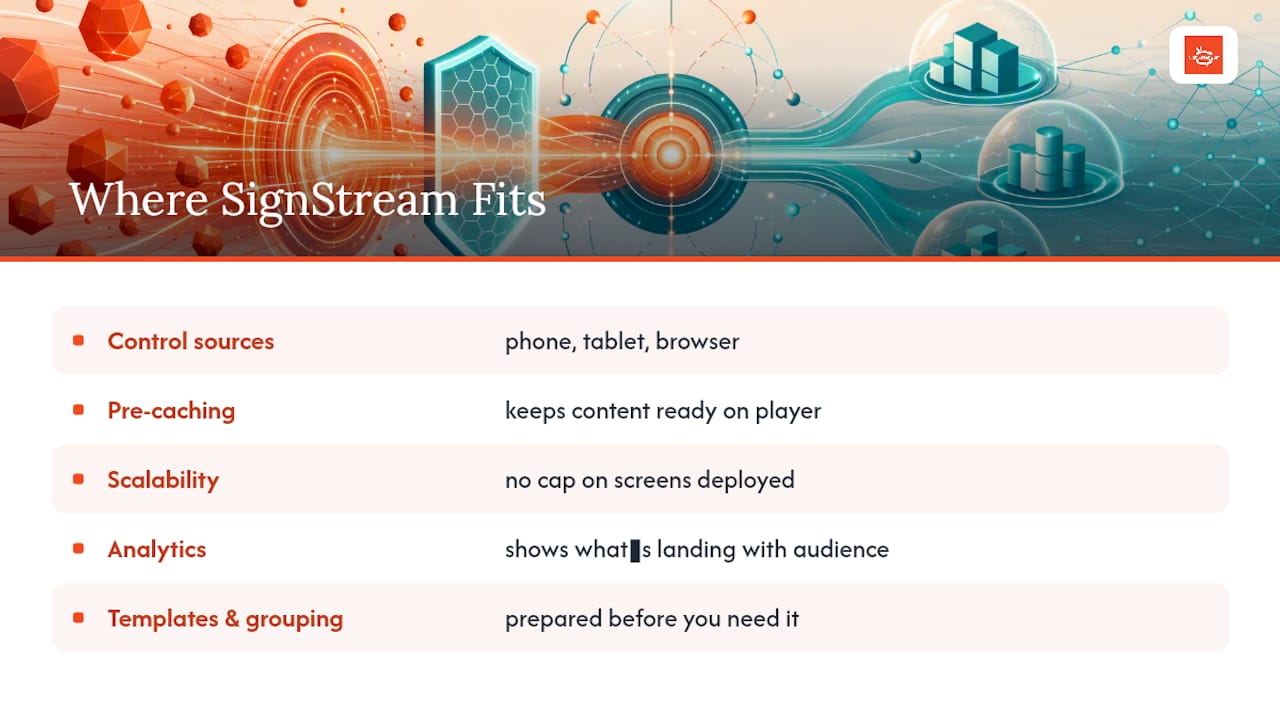
SignStream was built around the reality that takeovers live or die on speed and preparation. You can push updates to any screen from a phone, tablet, or browser, with pre-caching workflows that keep content ready on the player before you ever need it. There’s no cap on how many screens you deploy, and the built-in analytics show you what’s actually landing with your audience.
One fitness club client saw a significant rise in class attendance after using targeted takeovers to promote openings in real time. That’s the kind of result you get when the technical groundwork, templates, grouping, pre-caching, is already handled before the moment you need it.
— DKS
Run Takeovers That Actually Fire When You Need Them
Signstream gives you the mobile dashboard, pre-caching workflow, and unlimited screen deployment this whole guide has been describing, without a technical team standing between you and a live screen. You build the template once, push it from your phone in seconds, and every screen in your network updates at the same time, whether that’s two locations or twenty.

Beyond running your own alerts and promos, Signstream’s ad exchange marketplace lets you cross-promote with other local businesses and turn idle screen time into revenue. Before you lean on takeover mode for anything time-critical, test the full chain end to end, template, trigger, and rollback, the same way this guide recommends.
See exactly how the platform handles real-time triggers and pre-caching, and if you’re curious about monetizing your own screen network alongside your takeover strategy, the affiliate program is worth a look too.
Sources
Recommended
Comments