

Power Scheduling for Screens: A Playlist-First Approach

The most effective way to handle power scheduling for screens is to build master playlists around dayparting and recurring rules, back them with fallback content, and preview a full 24-hour cycle before anything goes live. This keeps every screen relevant at the right hour without manual re-scheduling. SignStream is one platform built to support this exact workflow.
Do this now: Build a weekly recurring playlist split into morning, lunch, and evening dayparts.
Then: Add fallback content and test the full 24-hour loop before pushing it to every screen.
Key Takeaways
Scheduling playlists with dayparting and recurring rules, backed by fallback content and a 24-hour test cycle, is the most reliable way to keep multi-screen networks running accurately.
Point | Details |
Schedule playlists, not assets | Editing one master playlist updates every scheduled time slot without manual re-work. |
Map dayparts to real traffic | Build separate morning, lunch, and evening playlists based on actual customer patterns. |
Always set fallback content | Assign default content and end dates so no screen goes blank or shows expired promotions. |
Test the full cycle before scaling | Preview a full 24-hour loop, including DST and override points, on one screen first. |
SignStream implements the workflow | Playlist scheduling, dayparting, screen groups, and analytics run in one dashboard, with clients reporting a 25% rise in class attendance. |
Table of Contents
How Scheduling Works in Cloud Digital Signage
Four building blocks run every digital signage schedule, and knowing the difference between them saves you from rebuilding your setup every time a promotion changes.
Playlists vs. individual assets. A playlist is a container of assets that plays on a loop. Scheduling the playlist, rather than each image or video inside it, means one edit updates every time slot at once.
Events and campaigns. These are time-boxed exceptions, like a weekend sale or a franchise-wide announcement, layered on top of your standing playlists.
Dayparting and recurring rules. Dayparting assigns different content to specific hours; recurring rules repeat that pattern daily or weekly without you touching the calendar again.
Overrides. Priority rules decide what wins when an event and a standing playlist collide, such as an emergency alert cutting through a lunch menu rotation.
Cloud platforms sync these rules to players that cache content locally, so a screen keeps running its last confirmed schedule even during a brief connectivity drop, a real advantage for multi-site networks. Calendar-style interfaces suit simple, date-driven schedules; rules-based engines suit networks juggling dozens of screens with recurring logic.
Best Practices Checklist for Dayparting and Playlist Scheduling
Start with dayparting. Map your actual foot traffic: a gym might run motivational class promos from 6 to 9 AM, switch to nutrition and retail content at lunch, then push evening class sign-ups and social proof after 5 PM. A restaurant does the same with breakfast, lunch, and dinner menus. Dayparting is the single most effective method for keeping signage contextually relevant instead of becoming ignored background noise.
Once your dayparts are mapped, build master playlists for each window rather than scheduling individual slides. Editing a playlist updates every scheduled instance at once, which is the difference between a five-minute content swap and an afternoon of re-scheduling forty screens one by one.
From there, a few rules keep the rotation sharp:
Run each slide for a short duration designed to maintain attention without feeling rushed.
Repeat key messages intentionally rather than constantly swapping in new creative. Frequent, consistent repeats improve message retention better than nonstop churn.
Give every promotion an end date. Expired content left running is the single most common signage complaint from customers.
Assign fallback content to every screen and every daypart, so a gap in the schedule never shows a blank or frozen screen.
Build your recurring weekly schedule first, then layer one-off events (a grand opening, a franchise promo) on top of it, never the reverse.
Pro Tip: Before you roll out a new schedule network-wide, preview a full 24-hour cycle on one test screen. Watch how it behaves at midnight, at your daypart boundaries, and when an event override triggers. That single test catches most scheduling bugs before a customer ever sees one.
Setting Up Multi-Screen Networks Across Locations
Running twelve screens across four locations is a different problem than running one. The fix starts with structure, not more manual work.
Group your screens logically. Group by location (each gym branch), by function (menu boards vs. promotional displays), or by audience (front lobby vs. locker room). Assign playlists to the group, not to each individual screen, so a new location just joins an existing group instead of getting a rebuilt schedule.
Confirm your time base. Check whether your platform schedules in local time or UTC, and test what happens during a Daylight Saving Time transition before you scale past one location. A schedule that’s an hour off during a lunch rush is a real problem for a franchise network spanning time zones.
Use events for one-off promotions. Test how your override priority actually resolves conflicts. A rules-based approach with categories and separation rules keeps similar ads from playing back-to-back and makes conflict resolution predictable.
Plan for offline behavior. Confirm how long cached content stays valid on a player that loses connectivity, and build a sync check into your rollout routine so no screen quietly falls behind on an expired promotion. Cloud platforms that centralize content and schedules make this far easier to audit from a single dashboard than checking each screen manually.
What Are the Most Common Scheduling Mistakes?
Most signage problems trace back to the same handful of errors, and they’re all preventable with a short verification routine.
Expired promotions left live because nobody set an end date.
Overlapping time slots where two playlists compete for the same window.
Schedules built in one time zone and deployed to screens in another.
No fallback content, so a scheduling gap shows a black or frozen screen.
Over-scheduling, cramming so many slides into a loop that nothing gets enough airtime to register.
A short verification routine catches nearly all of them. Previewing a full 24-hour schedule and testing transitions at midnight, DST changes, and event override points reveals most bugs before a single customer sees them. After rollout, check player logs and sync status to confirm every screen actually pulled the latest schedule, then review performance analytics.
Digital signage that runs stale or expired content is consistently cited as the most common signage complaint from both staff and customers, which is exactly why the end-date and fallback rules above aren’t optional extras.
How SignStream Applies These Scheduling Best Practices
SignStream builds these habits directly into the platform: playlist-first scheduling, dayparting, screen groups, priority overrides, and performance analytics, all through one interface that doesn’t require a technical team. Clients have reported a noticeable rise in class attendance after implementing scheduled promotions. SignStream also includes an ad exchange marketplace for cross-promotion revenue, with unlimited screens included at no extra charge.
Automation and Scripting Options for Power Scheduling
Manually rebuilding a schedule every week doesn’t scale past a handful of screens. Most cloud platforms let you automate recurring rules so a weekly dayparted rotation runs indefinitely without a manager touching the calendar again. That’s the baseline automation every network should set up first.
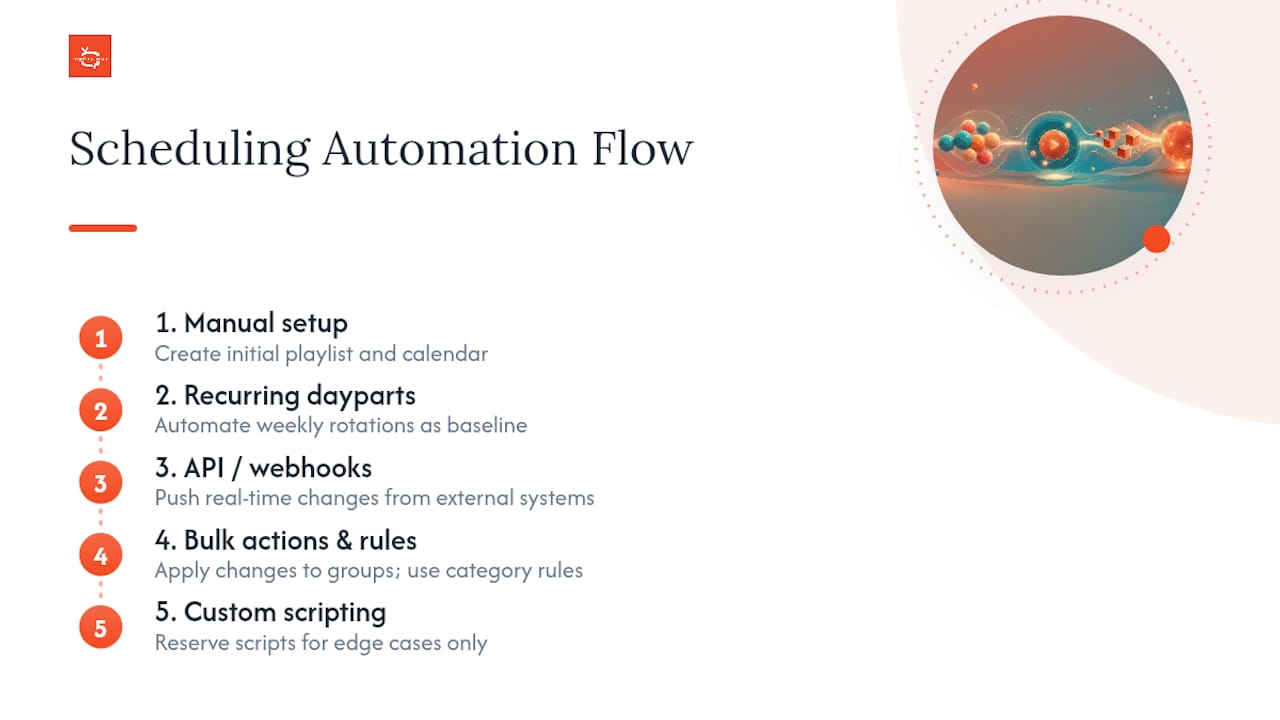
Beyond recurring rules, several platforms expose an API or webhook layer that lets external triggers push content changes automatically. A restaurant can tie a “sold out” flag in a point-of-sale system to an instant menu-board update. A gym chain can trigger a class-cancellation alert the moment a scheduling system marks a class full. This kind of scripting removes the lag between something changing in the real world and the screen reflecting it.
Bulk actions matter just as much as triggers. If you manage screens across ten locations, look for the ability to push a schedule change to every group at once rather than editing each screen’s calendar individually. This is where rules-based engines pull ahead of simple calendar interfaces: a category and separation-rule system lets the player assemble the loop dynamically instead of you scripting every combination by hand.
Start simple. Automate your recurring dayparts first, add API triggers only where a real-time event genuinely needs to reach the screen, and save custom scripting for edge cases your standard playlist rules can’t handle.
Does Power Scheduling Affect Screen Longevity and Energy Use?
Screens that run 24 hours a day burn through backlight hours and power at a rate most businesses never actually need. A gym lobby screen with nobody in the building at 2 AM is still drawing power and aging its display for no audience at all.

Scheduling content intelligently, rather than just letting a loop run indefinitely, indirectly extends how long a display holds its brightness and color accuracy, since commercial displays are rated for a set number of operating hours and every unnecessary hour counts against that budget. Pairing your content schedule with defined operating windows, so screens aren’t actively rendering content during closed hours, reduces both energy draw and wear on the panel.
The business case is straightforward: a restaurant open from 7 AM to 10 PM has no reason to run its menu boards at full brightness overnight. Aligning your active schedule to actual operating hours cuts the hours each display spends working, which matters more for a network of a dozen screens than for one.
The practical takeaway for managers running multi-location networks is to treat your operating hours as a hard boundary for your content schedule, not just a suggestion. It’s a small configuration step with a real payoff in display lifespan and utility costs over a multi-year deployment.
Monitoring and Reporting Tools for Schedule Adherence
A schedule is only as good as your ability to confirm it’s actually running. Player logs are the first place to check: they tell you whether a screen successfully pulled its latest schedule, when it last synced, and whether it fell back to cached content because of a connectivity gap.
Uptime reporting is the second layer. A dashboard that shows which screens are online, offline, or running stale content lets you catch a dead unit at one location before a customer notices a frozen menu board. For a franchise network, this single view matters more than any individual feature, because a manager checking on ten locations by hand simply won’t catch every failure in time.
Analytics go a step further than uptime. Performance tracking on content, which promotions got the most airtime, which dayparts drove engagement, turns your screen network into a feedback loop instead of a one-way broadcast. Reviewing that data after a rollout tells you whether your dayparting assumptions actually matched real foot traffic, and whether a promotion needs a longer run or a different time slot.
Build a habit around this: check sync status weekly, review uptime after any schedule change, and pull performance analytics monthly to confirm your content strategy is still working as intended.
Security Considerations in Remote Power Scheduling
Every screen on your network is an endpoint that can be reached remotely, which means access control matters as much as the content itself. A compromised login on a scheduling dashboard doesn’t just risk a scheduling error, it risks a stranger pushing arbitrary content to every screen in your network at once.
Role-based permissions are the first safeguard. A location manager who only needs to update a lunch menu shouldn’t have the same access as an administrator managing network-wide overrides and emergency interrupts. Limiting who can touch priority rules and event overrides reduces the blast radius of a single mistaken or malicious change.
Player-to-cloud communication should run over encrypted connections, and any platform worth trusting with your screen network will confirm this as standard rather than an add-on. Ask specifically how content and schedule data travel between your dashboard and each physical player.
Audit logs matter more than most managers realize until something goes wrong. A record of who changed what schedule, and when, turns a “why is this screen showing the wrong content” problem into a five-minute lookup instead of a guessing game across a franchise network with dozens of local administrators.
Compatibility Across Screen Hardware and Software Platforms
Franchise networks rarely run identical hardware at every location. One site might have a five-year-old commercial display, another a brand-new smart TV, and a third a dedicated media player. Power scheduling features need to work across that mix, not just on the newest hardware.
Platforms built to be hardware-agnostic run through smart TV apps or a small external player box, which means you’re not locked into replacing displays just to gain scheduling functionality. This matters most for retailers and gyms expanding into existing buildings that already have screens installed, where ripping out working hardware to match a new signage platform is a real cost, not a minor inconvenience.
Check three things before committing a network to one platform: whether it runs natively on the smart TV brands you already own, whether it supports the same scheduling rules (dayparting, overrides, screen groups) regardless of the underlying hardware, and whether adding a new location with different equipment requires a different setup process. A platform explainer covering cloud vs. on-premise signage is worth reading before you standardize equipment across a growing franchise.
The goal is one schedule, one set of rules, running consistently whether a screen is a five-year-old commercial panel or a smart TV you bought last month.
Integrating Power Scheduling With External Calendars
Most of your scheduling decisions don’t originate in your signage dashboard, they start in whatever calendar your business already runs on. A gym’s class calendar lives in a booking system. A restaurant’s specials often trace back to a shared team calendar. Rebuilding that information manually inside your signage platform every week wastes time and invites mismatches.
Integration with systems like Google Calendar or Outlook lets a scheduled event, a class time change, a staff meeting, a limited-time menu item, flow directly into your screen schedule without a manual re-entry step. This matters most for one-off events layered on top of your standing recurring playlists: a franchise-wide announcement scheduled in Outlook can trigger the matching override on every screen group automatically.
The practical benefit is fewer points of failure. When your signage schedule pulls from the same calendar your staff already updates for other reasons, you eliminate the gap where someone forgets to also update the screen. Before you build a workflow around this, confirm the integration syncs in both directions, or at minimum runs frequently enough that changes made an hour before an event actually reach the screen in time. A restaurant-specific scheduling guide walks through how dayparted menus and calendar-driven specials work together in practice.
What I’d Tell Any Manager Starting This Today
Start small: one location, one weekly recurring schedule split into morning, lunch, and evening dayparts. Get that running cleanly before you touch overrides or multi-location groups. SignStream clients who follow this sequence report measurable gains, including that 25% attendance lift, and support is available if you need help configuring your first rollout.
— DKS
Try SignStream’s Scheduling and Monetization Tools
SignStream turns the scheduling habits covered above into a working system: playlist-based dayparting, screen groups, priority overrides, and analytics, all managed from one dashboard across unlimited screens at no extra charge.

Beyond running your own content, SignStream’s ad display network lets you cross-promote with other local businesses and earn revenue from screens you’re already paying to run, turning a cost center into a source of income. If you want to see how dayparting, screen groups, and the ad exchange would work for your specific locations, book a free consult and walk through your setup with SignStream directly.
Sources
Recommended
Comments