

Yes, You Can Play YouTube on Digital Signage the Right Way
You can display YouTube videos, Shorts, playlists, and live streams on digital signage, and the reliable way is a signage plugin or cloud integration that pulls the YouTube link or embed rather than casting from a phone. There are three practical routes: a signage app where you paste the URL directly, an iframe or web view embed, and a cloud/API integration that manages playback for you. Before you pick one, keep three constraints in mind:
The video has to be public or unlisted; private links will not play.
Bandwidth matters: 1080p playback needs roughly 5 Mbps to avoid buffering.
Autoplay usually requires muted playback, since browsers block sound-on autoplay by default.
For a screen running unattended all day, cloud integration wins. It skips manual casting entirely and keeps your content live around the clock.
Key Takeaways
Reliable YouTube playback on digital signage depends on choosing cloud integration over casting, matching bandwidth to resolution, and keeping every video public or unlisted.
Point | Details |
Choose the right route | Use a signage plugin, iframe embed, or cloud/API integration instead of casting from a phone. |
Set visibility correctly | Videos must be public or unlisted; private or geo-blocked content will fail to play. |
Provision real bandwidth | Budget roughly 5 Mbps per screen for 1080p playback to avoid buffering. |
Handle autoplay properly | Use muted playback or player-specific autoplay parameters to work around browser autoplay policies. |
Scale with a managed platform | Signstream pulls YouTube content through cloud scheduling, updating unlimited screens instantly with built-in analytics and monetization options. |
Table of Contents
What YouTube Content Actually Works on Digital Signage?
Not every kind of YouTube content behaves the same way once it hits a commercial screen. Standard videos are the easiest, since they embed cleanly and loop without much fuss. Shorts play fine too, though their vertical format needs a matching zone or letterboxing on a landscape screen. Live streams work through the same embed pattern, but only while the stream is active. Playlists and full channel feeds also embed, letting you queue a rotation of clips instead of babysitting one video at a time.
Visibility is the real gatekeeper here. YouTube requires the video to be set to public or unlisted; private videos simply refuse to load on any external player, and geo-blocked content will fail for viewers outside the allowed region regardless of your settings.
A few other things trip people up:
Music tracks or clips flagged by Content ID can throw a “video unavailable” error even when visibility is set correctly.
Copyright claims sometimes restrict embedding entirely, which blocks playback on third-party signage software even though the video plays fine on YouTube itself.
Some monetized videos disable embedding at the uploader’s request, a setting worth checking before you build a whole playlist around it.
How Do You Set Up YouTube on a Signage Playlist?
Getting YouTube content onto a signage playlist comes down to picking the right method for how your player consumes video, then locking in playback settings so nothing breaks when you’re not watching.
1. Choose your embed approach. For a web view or iframe integration, use the standard pattern youtube.com/embed/VIDEO_ID, adding parameters like rel=0 to suppress related-video suggestions and autoplay=1 where your player supports it. This works well when your signage software renders a browser window, and it lines up with the YouTube IFrame API that most professional players build on.
2. Paste the URL if your app supports it. Many signage platforms let you drop a standard share link straight into a playlist slot. Set the slide duration to match the video’s runtime, or enable loop if you want it to repeat until the next scheduled item.
3. Add playlists and Shorts. A playlist URL with the &list= parameter queues multiple videos in sequence, and Shorts or live stream links slot into the same playlist structure without special handling.
4. Let the platform pull metadata via API. Cloud-based signage tools that connect through YouTube’s API rather than casting from a device fetch title, thumbnail, and duration automatically, which cuts down on manual entry errors and enables real scheduling and performance analytics, a workflow YouTube’s own device guidance treats as separate from casual casting.
Before you walk away from a new setup, run this checklist: confirm the video is public or unlisted, verify you’re using the correct URL type (embed link, not a share link, for iframe setups), set slide duration or loop, decide on mute versus captions, and physically test playback on the actual screen and player you’ll be using in production.
Pro Tip: Always test on the exact hardware you’ll deploy, not just a laptop browser. A video that autoplays perfectly on Chrome can silently fail on a budget streaming stick with an older browser engine.
Which Playback Settings Matter Most for Signage?
Loop and mute are the two settings you’ll touch most often, but a few others decide whether the video actually fits your space.
Loop keeps a single video repeating until your schedule moves to the next slide, which works well for a short 30 second promo but looks awkward for a 10 minute product demo unless your slide duration is set to match. Mute is the default for most signage deployments, both because autoplay policies often require it and because ambient audio in a lobby or gym rarely helps. Where audio does add value, like a training video in a break room, enable captions instead of relying on speakers; captions also help in loud retail floors where the audio would get lost anyway.
A few more controls worth knowing:
Start time lets you skip a video’s intro and jump straight to a timestamp, useful for trimming long-form content down to the relevant clip.
Shuffle changes playlist order, which is fine for background rotation but a poor choice if videos need to play in sequence.
Zoning separates background audio zones from foreground video zones, so one screen can run silent visuals while a separate speaker zone handles announcements.
Disable on-screen controls like progress bars and pause buttons; customers don’t need to see YouTube’s native UI on a commercial display.
What Bandwidth and Hardware Do You Actually Need?
Buffering is almost always a bandwidth problem before it’s a software problem. 1080p YouTube playback needs about 5 Mbps per stream under normal conditions, and that figure multiplies fast once you’re running several screens off the same connection.
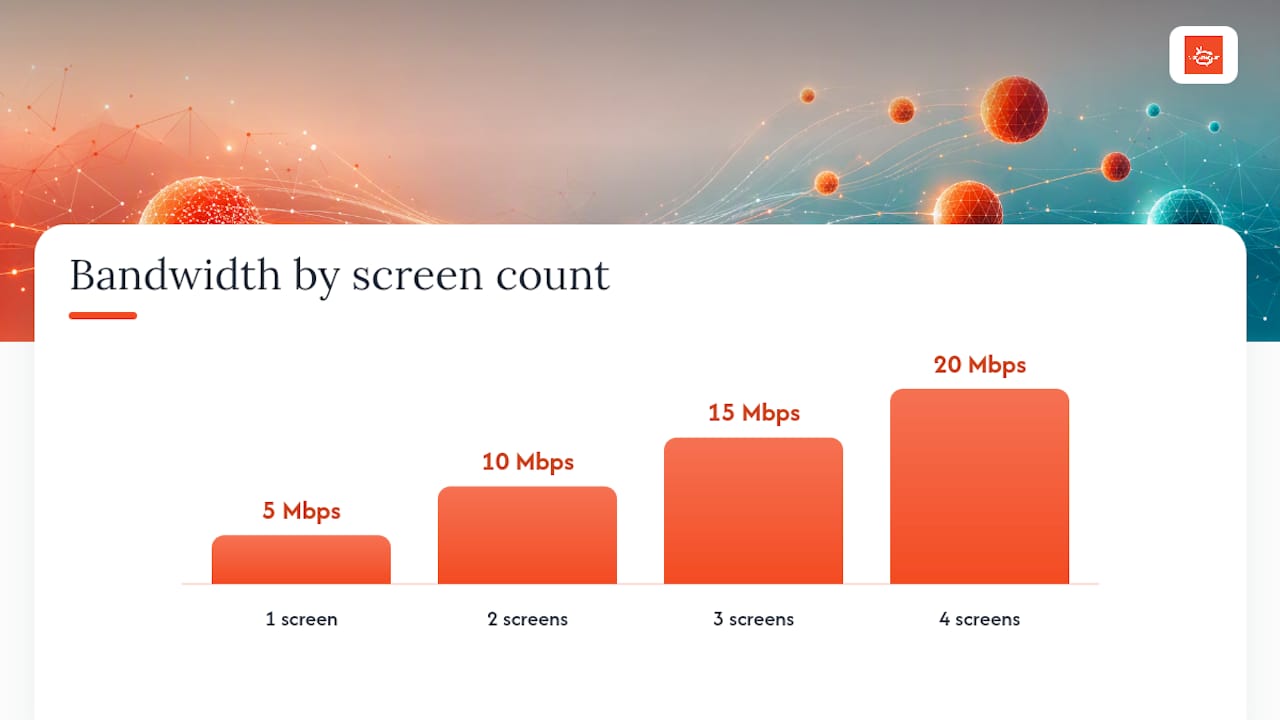
Statistic Callout: A location running four screens at 1080p should provision at least 20 Mbps of dedicated bandwidth, since each stream draws close to the 5 Mbps baseline independently.
Hardware choice affects reliability just as much as bandwidth. Smart TV apps are convenient but vary wildly in browser engine quality between brands. Streaming sticks like Fire TV or Chromecast work for casual use but weren’t built for unattended 24/7 commercial playback. Small dedicated PCs or Raspberry Pi units running a signage client tend to hold up better over long runs, since they’re purpose-built rather than repurposed consumer hardware.
A few reliability habits worth building into your setup:
Check for autoplay policy restrictions that block sound-on playback in most browsers.
Use a preserve-performance or 720p fallback setting when network conditions are inconsistent.
Schedule prebuffering during off-hours instead of pulling content fresh every time a playlist loops.
Favor local caching over live streaming when your connection is shared with other business operations.
How Do You Fix Common YouTube Playback Errors?
Most YouTube signage failures trace back to one of four causes, and you can usually diagnose them in under five minutes.
“Video unavailable” errors. Confirm the video is public or unlisted, not private. Try loading the embed URL directly on the signage device’s browser to isolate whether it’s a player issue or a source issue, and check for Content ID or music restrictions that block embedding entirely.
Autoplay or “error 153” style failures. These usually point to a browser autoplay policy blocking sound-on playback. Switch to muted playback or use your signage player’s dedicated autoplay parameters instead of relying on default browser behavior.
Buffering during playback. Run a speed test on the actual screen’s network connection, drop to 720p if bandwidth is marginal, and enable preloading so the video buffers before its scheduled slot rather than during it.
Isolated single-screen problems. If only one screen struggles while others run fine, the issue is almost always that device’s local network connection, not your YouTube source or signage software.
Run through public/unlisted status, embed URL format, and a fresh speed test before you open a support ticket. It resolves the majority of playback complaints.
How SignStream Handles YouTube Content at Scale
Running YouTube reliably across more than one or two screens is where DIY setups start to strain, and it’s exactly where a managed platform earns its keep. Signstream connects to YouTube links through cloud scheduling rather than device casting, so content updates push instantly to every connected screen from any device, with no one physically walking up to a TV to change anything.
What matters for YouTube specifically:
Embed support that handles standard videos, Shorts, and playlists without manual URL formatting.
Remote updates across unlimited screens at no added cost per screen.
Analytics that show which content actually holds attention, not just what’s scheduled.
Ad exchange access, so a screen playing YouTube content can also carry paid cross-promotions from other local businesses.
One restaurant deployment using this approach reported measurable engagement gains after switching from manual updates to centralized scheduling, including venues that saw a 25% rise in class attendance after signage went live.
A typical workflow: drop the YouTube link into a channel, set loop and mute preferences, schedule it across specific screens or dayparts, then check analytics weekly to see what’s working.
Pro Tip: If you’re running more than three screens, skip the casting approach entirely. Cloud scheduling saves hours a month once you factor in the time lost re-casting after every outage or reboot.
Can Customers Interact With YouTube Content on Signage?
Most YouTube signage deployments run as passive, one-way displays, and for good reason. Business screens in gyms, lobbies, and retail floors are meant to inform or entertain at a glance, not invite fumbling with on-screen controls while a line forms behind someone.

That said, interactive setups have their place. Touch-enabled kiosks in a hotel lobby or a retail showroom can let customers browse a curated YouTube playlist, selecting product demos or brand videos on demand instead of watching a fixed loop. When you go this route, disable YouTube’s native progress bar and suggested-video overlay so customers only see your curated content, not a rabbit hole of unrelated recommendations.
Remote management matters more than on-screen interaction for most businesses. The real control happens behind the scenes: swapping a video, adjusting volume, or pulling a stream down the moment it’s no longer relevant, all from a phone or laptop rather than physically touching the display. This is where cloud-connected signage separates itself from a simple TV running YouTube through a browser tab. A manager at one location can update every screen in a multi-site network in the time it takes to update one.
If you do enable touch interaction, test it under real conditions first. A touchscreen that works perfectly in a quiet office can behave unpredictably in a busy gym with sweaty fingers and constant foot traffic, so budget time to test responsiveness and the reset behavior between customers. Set an idle timeout that returns the screen to its default playlist after a set period of inactivity, so an abandoned interaction doesn’t leave a random video frozen on-screen for the rest of the day.
How Should You Format YouTube Video for Signage Screens?
A video built for a phone screen or a YouTube feed rarely looks right on a commercial display without some adjustment. Aspect ratio is the first thing to check: standard YouTube video is 16:9, which matches most landscape signage screens cleanly, but Shorts are shot vertically at 9:16 and will either get pillarboxed with black bars or stretched awkwardly if your player doesn’t handle the conversion well.
Resolution matters just as much as ratio. Source video shot below 1080p will look soft on a large commercial display, especially anything over 55 inches viewed from a few feet away. Where possible, source or export content at 1080p minimum, and reserve 4K sourcing for larger format displays where the extra detail is actually visible.
A few formatting habits make a real difference:
Trim intros and outros built for YouTube’s algorithm. A 15 second brand bumper makes sense on a personal channel; it’s dead air on a signage loop.
Keep on-screen text large and high-contrast, since signage often gets viewed from a distance rather than up close.
Avoid videos with dense subtitles or lower-third graphics designed for close viewing; they become unreadable at a distance.
Match the video’s pacing to your environment. Fast cuts work in a retail window meant to catch a passing glance; slower pacing suits a waiting room where people watch longer.
Test any reformatted content on the actual target screen before it goes into rotation. What looks fine on a laptop preview can reveal cropping issues or unreadable text once it’s scaled up to a 65 inch display running at a viewing distance of ten feet or more.
The Real Bottleneck Isn’t YouTube, It’s Your Workflow
The conventional wisdom treats YouTube-on-signage as a technical problem: find the right embed code, get the resolution right, done. That framing misses where things actually fall apart in practice. Video visibility settings, bandwidth, and embed syntax are solvable in an afternoon. What breaks down over months is the operational habit of updating content, checking analytics, and swapping out stale videos across a growing number of screens.
Casting from a phone feels simple on day one and becomes a liability by week three, once someone forgets to re-cast after a router reboot or a staff member leaves and takes the login with them. That’s not a hypothetical, it’s the predictable failure mode of treating commercial signage like a personal streaming setup.
The businesses that get real value from YouTube on signage are the ones that treat it as an operations question first and a technical one second. Pick the integration method that requires the least manual babysitting, then build a habit around checking what’s actually playing and whether it’s working. The embed code was never the hard part.
— DKS
Put YouTube on Every Screen Without Touching a Remote
If you’ve made it this far, you already know the gap between casting a video and running it reliably across a business network. Signstream closes that gap by managing YouTube content the same way it manages every other channel: from the cloud, pushed instantly to unlimited screens, with no per-screen fees and no one walking around with a remote.

Signstream fits gyms, restaurants, retail locations, and franchise networks that need YouTube playlists, promos, and live streams running consistently without a dedicated IT person babysitting each screen. Beyond playback, the platform’s interactive ad and custom channel tools let you layer branded promotions alongside your YouTube content, and its ad exchange network opens a path to monetize screen space by cross-promoting with other local businesses. If you’re managing more than a couple of screens, start a trial and connect your first YouTube channel today to see how much manual work disappears.
Sources
Recommended
Comments