

Fix Screens in Under a Minute: Update Signage From Phone for Operators
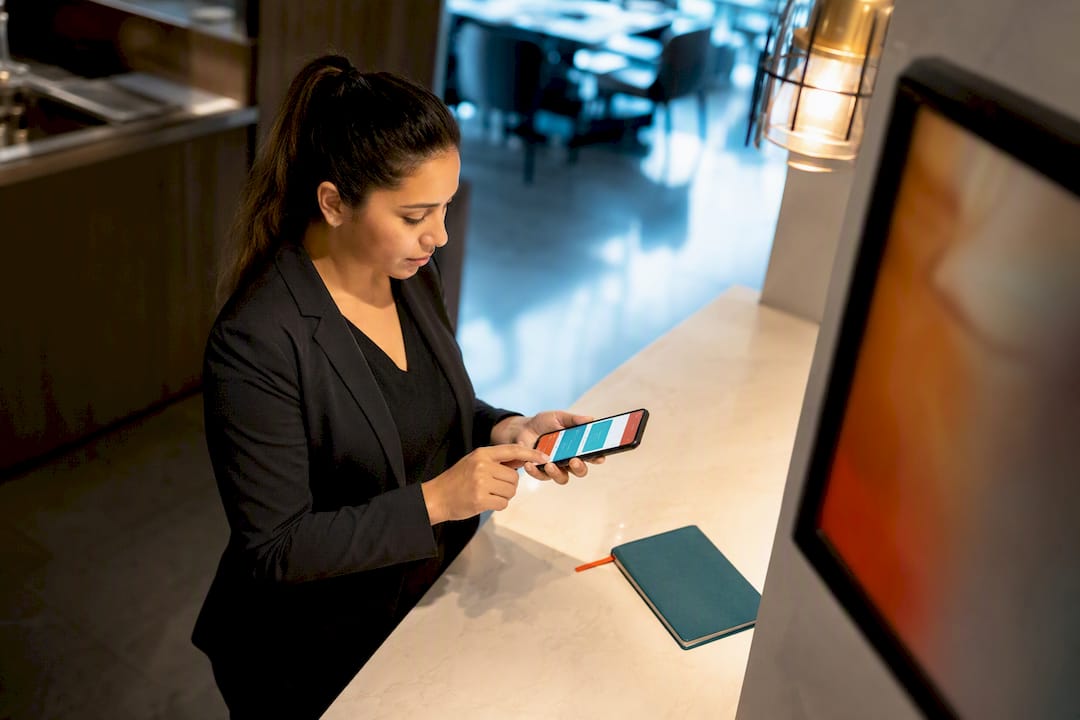
Yes, you can update digital signage from a phone, but only when three things line up: a cloud-based CMS, a networked media player or app on the screen, and the right login permissions. Miss any one of those and your phone becomes a nice-looking dead end. When they’re in place, you get fast fixes like swapping a slide or pushing a new price. Bulk scheduling and multi-screen template work still belong on a desktop.
TL;DR:
Mobile control works only with a cloud-based CMS, a networked media player, and appropriate login permissions; missing any reduces functionality to dead end.
Real-time updates via phone are ideal for urgent fixes like price corrections or schedule changes, but bulk scheduling still requires desktop use.
Role-based permissions and audit logs are essential to prevent accidental overwrites and ensure accountability when staff have edit access.
Adding new screens quickly relies on QR-code pairing or zero-touch enrollment, making large-scale multi-site management feasible without technical staff.
The most common rollout failure stems from broad edit rights and neglected device health checks, which can be mitigated with proper permissions and routine monitoring.
Table of Contents
What Phone Control Actually Lets You Do
A smartphone is built for speed, not depth. That’s not a limitation of the technology so much as a deliberate design choice most platforms make, since mobile dashboards are typically built for quick updates and status checks while heavier configuration work stays on the desktop web console to reduce the odds of someone accidentally breaking a screen network mid shift.
From a phone, you can reasonably expect to:
Publish a new slide, price change, or promo image immediately
Swap an existing template with a pre-built alternative
Nudge a schedule (delay a happy hour graphic by 30 minutes, extend a sale banner)
Send a “run now” command to override the current playlist
Check whether a screen is online or offline
Pull a quick screenshot to confirm what’s actually displaying
Trigger a basic reboot if a screen freezes
A restaurant manager who runs out of the daily special at 1 p.m. doesn’t need a desktop session to fix that. She opens the app, swaps the slide, hits publish now, and it’s live in seconds. That’s different from a scheduled change, which sits in a queue and fires automatically at a set time. Publish now is for the fire you’re putting out today. Scheduling is for the fire you know is coming next Tuesday.
Retail works the same way. A store associate spotting a pricing error on the sales floor doesn’t need to escalate to IT. Corrected on the spot, from the phone in their pocket.
Why Phone Control Matters for Operations and Outcomes
Speed is the whole point. Catching a wrong price or an expired promo during service, rather than after a customer complains, saves you the complaint and the correction both. Mobile access hands that fix to whoever’s on the floor, not whoever’s at a desk three states away.
That kind of frontline authority pays off in ways that show up in the numbers. Some clients running class schedules and promotions through mobile updates have reported an increase in class attendance after switching from static signage to real-time, phone-managed content, a shift that tracks with what happens when a schedule change or a last-minute class opening actually reaches the screen before the person walking by decides to keep walking.
Speed without guardrails is its own risk, though. Giving every staff member full publish rights invites accidental overwrites. The fix isn’t restricting mobile access. It’s pairing it with role-based permissions and an audit log, so speed and accountability travel together instead of trading off.
Managing Multiple Locations and Fleets From Mobile
Group actions from a phone are safe for small, low-risk changes, a seasonal banner across five locations, a holiday hours notice. They’re not safe for anything that touches pricing, legal disclaimers, or brand-critical messaging without a preview step first. The more screens a single tap touches, the more a typo travels.
Enrollment matters more than most operators expect. Platforms that support QR-code pairing or zero-touch enrollment let a new screen join the network in minutes, without a technician plugging in a laptop at every site. For franchise groups adding locations regularly, that difference compounds fast, and it’s worth digging into if you’re managing signage across multiple franchise locations.
For any change touching more than a couple of screens, follow this pattern:
Test the change on one non-visible or low-traffic screen first
Preview it exactly as customers will see it, not just in the editor
Push it to a small staged group, not the whole fleet at once
Monitor for 15 to 30 minutes, checking screenshots or status pings
Roll back immediately if anything looks wrong, before scaling further
Pro Tip: Lock your highest-stakes playlists, pricing boards, legal notices, safety messaging, behind manager-level or admin permissions only. Give frontline staff edit access to the screens where a mistake costs you nothing, and reserve broad access for the ones where a mistake costs you a lot.
Checklist: What to Evaluate When Choosing a Phone-Friendly Signage System
Not every platform that claims “mobile control” actually delivers it. Some just wrap a desktop interface in a smaller window and call it a day. Before you commit, verify these categories directly.
Mobile app features. Confirm the app supports preview before publish, a true publish-now command, direct media upload from your camera roll, and offline caching so a spotty connection doesn’t wipe out your edit.
Remote device management. This is where a lot of platforms fall short. According to Skykit’s breakdown of remote device management, reliable remote control depends on managing the entire stack, software and media player firmware together, not just the content layer. Demand reboot capability, screenshot pulls, over-the-air updates, and basic device health monitoring (online status, storage, uptime).
Security and permissions. Role-based access control should be standard, not a premium add-on. Look for audit logs that track who changed what and when, and multi-factor authentication on any account with publish rights.
Hardware compatibility. Check whether the platform runs on smart TV apps you already own or requires dedicated media players. Either can work, but know the minimum network specs (bandwidth, Wi-Fi vs. ethernet) before you sign anything.
Support and onboarding. A free trial tells you more in a week than a sales deck tells you in an hour. Look for clear documentation and a real onboarding workflow, not just a login link and a “good luck.”
Category | What to verify |
Mobile features | Create, publish, update, preview, offline caching |
Device management | Reboot, screenshot, OTA updates, health monitoring |
Setup and enrollment | QR pairing, zero-touch onboarding |
Best-for scenario | Single site vs. multi-site chains |
Security | Role-based access, audit logs, MFA |
If you’re still comparing platform types at a foundational level, a broader beginner’s guide to digital signage platforms covers how CMS and media player architecture differ before you narrow your list.
A Mobile-First Update That Actually Moved the Needle
A fitness club running a static class schedule board had a recurring problem: last-minute class additions and instructor swaps never made it to the screen in time. Members would show up expecting one class and find another, or miss a newly added session entirely because nobody updated the printed insert.
The fix started small. The front-desk manager got publish access to the class schedule playlist only, nothing else on the network. When a class got added or an instructor changed, she opened the app, edited the slide, previewed it against the live screen layout, and hit publish now. No IT ticket, no delay.
The change that mattered wasn’t the technology itself. It was cutting the gap between “we changed the schedule” and “the screen shows the schedule” down to under a minute.
The results, tracked over several months, included:
A 25% increase in class attendance tied to accurate, real-time schedule visibility
Fewer front-desk complaints about schedule mismatches
Staff confidence in making updates without escalating to a manager or IT contact
The controls that made it safe: a single restricted playlist, staged rollout during a quiet morning window before trusting it during peak hours, and a permission level that kept the manager from touching anything outside her assigned screen. The lesson holds for any operator: the phone did the work, but the guardrails made the phone trustworthy.
Where Mobile Control Fits Best
Reach for your phone when the fix is urgent and narrow: a single screen showing the wrong price, a special that sold out, a broken slide right before the doors open. That’s exactly the scenario mobile control was built to solve.
Reach for the desktop when the job is bigger: building templates from scratch, scheduling a week of rotating content, or uploading a batch of new media assets across a location group. Trying to do that kind of work on a five-inch screen wastes time and invites mistakes.
A simple rule of thumb: if a change affects more than five screens, plan on desktop staging first, even if you’ll eventually push it from your phone. The hybrid approach, desktop for planning, mobile for execution, tends to serve most operators better than picking one device and sticking to it exclusively.
What Actually Trips Up Mobile Signage Rollouts
The mistake I see most often isn’t a technology failure. It’s operators handing out broad edit rights to everyone on staff because it feels efficient, then discovering three weeks later that nobody can trace who changed the pricing board incorrectly. Lock permissions down by role from day one.
The second mistake is skipping device health checks. A screen that’s been offline for two days doesn’t announce itself, it just sits there dark until a customer mentions it.
Run a dry-run schedule change with new staff before trusting them with live screens. If you want to see how the mechanics work end to end, Signstream’s platform documentation walks through the mobile and browser controls in detail, and the restaurant-focused guide is a solid reference if quick menu and specials updates are your main use case.
— DKS
Update Signage From Your Phone With Signstream
This platform is built around exactly the workflow this article describes: real-time updates pushed to unlimited screens via a content publishing platform, from your phone or any browser, without a technician on standby. Features include:

Instant multi-screen publishing from mobile or desktop
Ability to create custom media networks
Analytics to track what’s actually working on each screen
An ad exchange marketplace for generating revenue from screens
If your current setup means calling someone every time a price changes or a class gets rescheduled, that’s a workflow problem, not a staffing problem. Signstream’s free consult walks through your specific screens and use case, and the how-it-works page breaks down the mobile and remote-control features before you commit to anything. Book the consult and see what a same-day update actually looks like on your own network.
Sources and Further Reading
Digital Signage for Restaurants: Getting Started Guide: hospitality workflows
Signstream: platform overview and client results
Recommended
Comments