

Smart TV vs. Media Player: A Business Signage Guide
For a single back-office screen or a short-hours pilot, a Smart TV works fine. For anything customer-facing, running 24/7, or spanning multiple locations, pair a dedicated media player with a commercial display. Three facts drive that verdict:
24/7 ratings: Commercial displays are engineered for continuous operation; consumer Smart TVs are typically designed for 6–8 hours per day.
Remote management: Dedicated players support centralized CMS control, scheduled updates, and fleet monitoring across every screen you own.
Replacement economics: When hardware fails, swapping a $150 player costs far less than replacing a full integrated screen.
Signstream clients, including sports clubs and restaurants, have reported a ~25% lift in class attendance after deploying managed digital signage networks.
Key Takeaways
For customer-facing or multi-location digital signage, a dedicated media player paired with a commercial display is the lower-risk, lower-lifecycle-cost choice over a consumer Smart TV.
Point | Details |
Scale and uptime drive the decision | Use a Smart TV only for single, low-priority screens under 8 hours per day; go commercial for everything else. |
Consumer TVs carry real warranty risk | Manufacturers can void residential warranties when a unit is operated commercially, leaving you with no support. |
Modular players cut lifecycle costs | Swapping a player on failure costs far less than replacing an integrated consumer TV screen and avoids extended downtime. |
Portrait installs need commercial panels | Consumer TV venting is horizontal; portrait rotation blocks airflow and accelerates thermal failure. |
Signstream simplifies the rollout | Signstream’s cloud CMS supports unlimited screens, real-time updates, and ad-exchange monetization across any compatible display. |
Table of Contents
How does a smart TV compare to a dedicated media player for digital signage?
Dimension | Consumer Smart TV | Commercial Display + Dedicated Player |
Designed usage hours | 6–8 hrs/day (consumer rated) | 24/7 rated |
CPU/RAM/storage | Consumer SoC, typically ~2GB RAM / ~8GB flash | Commercial SoC or external player with more RAM, storage, and thermal headroom |
Brightness | 250–400 nits (indoor HDR) | high brightness panels for ambient-light environments |
Portrait/video-wall support | Limited; venting not designed for portrait | Built-in thermal management and portrait venting |
Remote management/CMS | Basic or none; app updates can break signage | Full CMS integration, zero-touch provisioning, fleet monitoring |
I/O and control ports | HDMI, USB; no RS232 or LAN control | RS232, LAN, OPS slot options, Crestron/AMX compatibility |
Warranty and support | Residential; commercial use often voids coverage | Commercial warranty, onsite service options, SLA tiers |
Initial cost vs. TCO | Lower upfront; higher lifecycle cost | Higher upfront display cost; lower lifecycle cost via modular player swap |
Scalability | Poor; each screen managed individually | Strong; standardized fleet, synchronized playback, multi-site control |
When is a Smart TV the right call?
A Smart TV is a reasonable choice in a narrow set of scenarios. Think: a single screen in a staff break room cycling a weekly schedule, a temporary pop-up display running under eight hours a day, or a proof-of-concept pilot before you commit to a full commercial rollout.
Single back-office or staff-room screen with no customer-facing requirement
Low-priority menu boards operating fewer than 8 hours per day
Short-term or seasonal installations (pop-ups, events, temporary promotions)
Pilot deployments where you are testing content strategy before scaling
Operational caveats to keep in mind:
Built-in SoCs on most Smart TVs carry only ~2GB RAM and ~8GB flash, which causes app crashes and sluggish performance under continuous signage loads.
OS updates pushed automatically by the manufacturer can break your signage app overnight.
Portrait rotation blocks the designed airflow on consumer panels, accelerating overheating.
Remote management is limited or nonexistent without a third-party workaround.
Pro Tip: Before purchasing any consumer TV for signage, ask the vendor in writing whether commercial use voids the warranty. Most residential warranties exclude commercial operation, and manufacturers can inspect units to determine how they were used.
Consumer TV warranties frequently exclude commercial use entirely. Confirm coverage before you buy, or budget for a replacement with no manufacturer support.
When should you choose a dedicated media player?
Any screen your customers actually see deserves a dedicated player paired with a commercial display. That covers restaurant menu boards, gym class schedules, retail promotional walls, hotel lobbies, corporate reception screens, and interactive kiosks.
Use cases that require a dedicated player:
24/7 signage in customer-facing environments (restaurants, gyms, retail)
Synchronized video walls across multiple panels
Multi-site networks where content must update remotely without on-site visits
Interactive kiosks requiring touch input, live data feeds, or HTML5 content
Corporate lobby dashboards with high-uptime requirements
Technical advantages over consumer Smart TVs:
Stronger CPUs, more RAM and storage, and better thermal management for continuous operation
OPS slot compatibility for clean, integrated installations
RS232 and LAN control for integration with room-control systems (Crestron, AMX)
Factory color calibration and higher brightness panels for ambient-light environments
Portrait mounting support with proper venting
Hardware categories to evaluate with your supplier:
BrightSign LS/HD/XT series — purpose-built signage players with strong reliability records and broad CMS compatibility; the XT series handles 4K and multi-zone layouts.
Intel NUC / mini PC class — Windows or Linux-based flexibility for HTML5, live dashboards, and interactive applications requiring full browser rendering.
Commercial Chromebox / Chrome Enterprise devices — managed via Google Admin Console, well-suited for multi-site retail and franchise networks needing zero-touch provisioning.
LG webOS Signage with OPS modules — integrated SoC option on LG commercial panels; OPS slots let you upgrade the compute module without replacing the display.
Samsung MagicINFO with QB/QM commercial series — Samsung’s proprietary CMS paired with commercial panels rated for 24/7 use, with built-in scheduling and remote monitoring.
Dedicated players and commercial displays consistently outperform consumer Smart TVs on I/O, CMS integration, and fleet management at scale.
Eight questions to help you choose the right hardware
Work through these before talking to any supplier:
How many hours per day will the screen run? More than 8 hours daily means you need a commercially rated display.
Is this screen customer-facing? If yes, skip the consumer TV entirely.
How many screens and locations do you need to manage? More than two locations makes centralized remote management non-negotiable.
Does your content include HTML5, live data, or 4K video? Consumer SoCs will struggle; a dedicated player handles it cleanly.
Do you need portrait orientation? Confirm the display’s portrait venting specs and warranty coverage before ordering.
What are your warranty and service expectations? Ask vendors for the commercial warranty term, onsite service availability, and SLA response times.
What is your 3-year TCO, not just the purchase price? Factor in downtime costs, engineer visits, and replacement frequency.
Do you have physical space for an external player, or do you need an OPS slot? Tight wall-mount installations may require an OPS-enabled display.
Red flags during vendor evaluation:
No remote management API or CMS integration documented
No commercial warranty or explicit exclusion of commercial use
Single-point-of-failure design with no modular replacement path
No portrait mounting specification in the product sheet
Avoid common procurement mistakes by requesting spec sheets that explicitly state 24/7 ratings, portrait support, and warranty scope before you sign any purchase order.
Installation, maintenance, and lifecycle costs over time
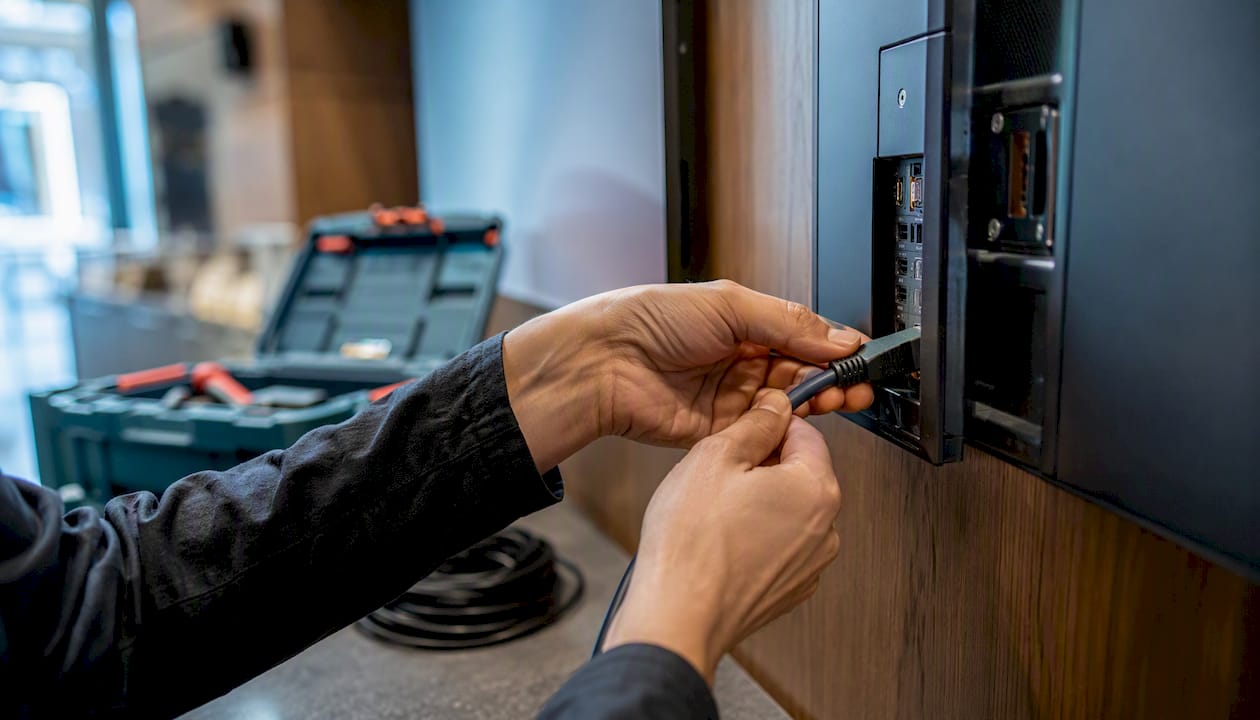
Installation differences: External players need cable management and sometimes a rack or AV closet. OPS-slot displays keep everything behind the panel for a cleaner install. Portrait mounts require confirmed venting clearance, especially in tight wall recesses.
Network connectivity: Prefer wired Ethernet for any mission-critical display. Wi-Fi is acceptable for low-priority screens in locations where cable runs are impractical, but use a dedicated SSID and WPA3 encryption to reduce interference and security exposure.
Lifecycle economics matter more than the sticker price. Modular replacement means you swap a $150 player when it fails, not a $1,200 display. A consumer TV replaced every 3–4 years in a commercial environment, with engineer visit costs and revenue lost during downtime, typically exceeds the total cost of a commercial display and player combination over the same period.
Firmware and maintenance:
Schedule firmware updates during off-hours using your CMS; never allow auto-updates on live signage.
Rotate static content periodically to reduce panel burn-in on OLED or plasma displays.
Standardize your player model across all sites so any technician can swap a unit without retraining.
A good signage architecture pairs the right endpoint hardware with a cloud CMS that handles scheduling, remote monitoring, and zero-touch provisioning across every screen in your network.
Recommended hardware by deployment role
Role | Recommended endpoint | Primary strength | Verify with vendor |
Single low-priority screen | Consumer Smart TV + signage app | Low upfront cost | Warranty for commercial hours; app compatibility |
Small restaurant or café menu board | Commercial display with built-in SoC or entry-level player | Reliable brightness; portrait support | 24/7 rating; portrait venting; CMS compatibility |
Multi-site retail or franchise | Commercial displays + Chrome Enterprise or BrightSign | Zero-touch provisioning; fleet management | Google Admin Console access; RS232/LAN control |
Corporate lobby or reception | Commercial display + Intel NUC class | HTML5, live data, full browser rendering | Onsite warranty SLA; OPS slot availability |
Interactive kiosk | NUC-class mini PC or Android/Windows player | Touch input; custom app support | Portrait thermal spec; commercial warranty; CMS SDK |
For any customer-facing role, confirm factory color calibration and a 24/7 panel rating before finalizing the order. Effective signage design compounds the hardware investment, so pair the right display with content built for the environment’s lighting and viewing distance.
Also consider affordable small-deployment options if you are managing a tight budget across a few screens before scaling up.
What should you do in the next 90 days?
Verdict: Use a Smart TV only for single, low-priority screens under 8 hours per day. Use a dedicated media player with a commercial display for every customer-facing, 24/7, or multi-location deployment.
30/60/90-day action plan:
Days 1–30: Run a one-screen pilot. Select your hardware using the eight-question checklist above. Test your CMS, content scheduling, and remote update workflow before committing to a fleet.
Days 31–60: Expand to 3–5 screens across different locations. Validate remote monitoring, firmware update procedures, and wired vs. wireless playback stability under real operating conditions.
Days 61–90: Standardize your player model and display spec across all sites. Procure extended commercial warranties and document your support SLA with the vendor.
Three immediate tasks for your procurement and operations teams:
Request spec sheets from every shortlisted vendor confirming 24/7 rating, portrait venting specs, and commercial warranty terms.
Confirm in writing that your chosen display and player combination is compatible with your CMS platform.
Test wired Ethernet playback on your pilot screen before approving a Wi-Fi-only installation.
The mistake operators keep making
Portrait-mounted consumer TVs are one of the most common and costly errors in business signage. The panel’s internal venting runs horizontally; rotate it 90 degrees and you block the airflow path entirely. The display runs hot, throttles performance, and eventually fails, often outside warranty because the manufacturer can see it was used commercially.
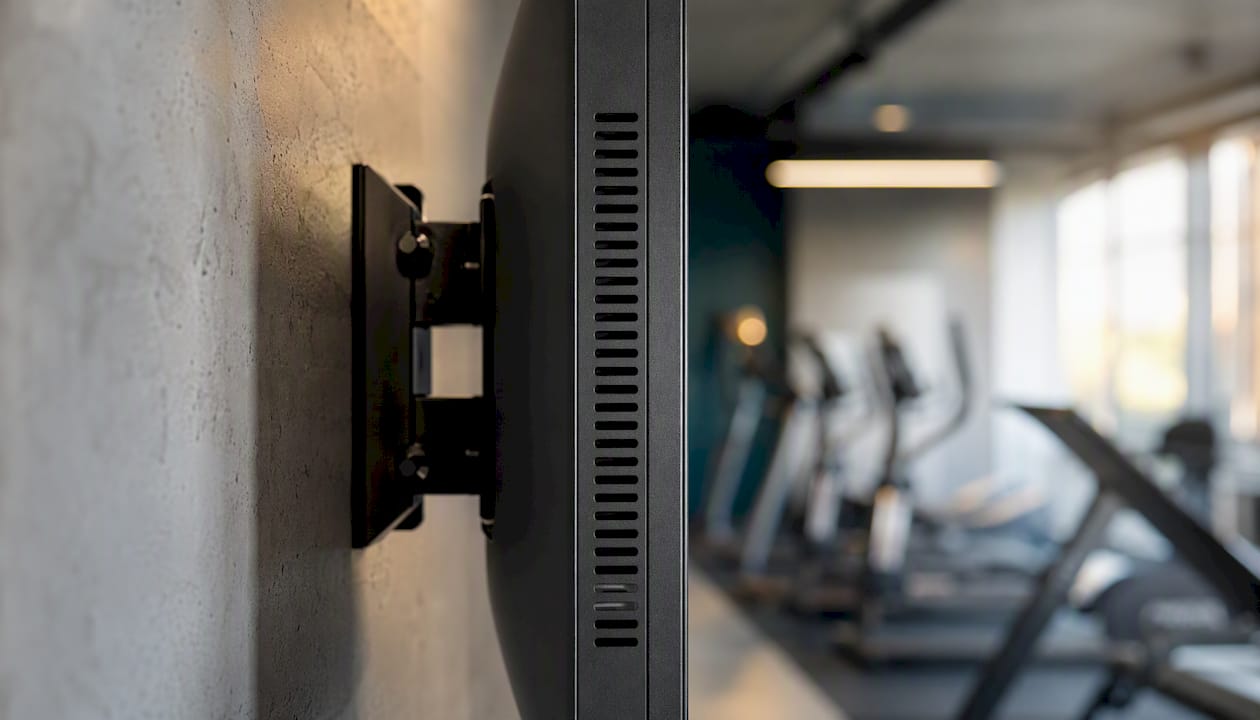
The fix is straightforward: use a commercial display rated for portrait use with documented thermal management for that orientation. Before any portrait install, pull the product sheet and confirm the venting specification and warranty coverage explicitly cover portrait operation. That single check, done before purchase, prevents the most expensive and avoidable failure mode in the field.
Signstream makes your pilot faster and lower risk
Running a pilot shouldn’t mean weeks of IT setup. Signstream’s cloud-based digital signage platform works across Smart TVs and commercial displays, so you can test hardware options without locking into a single endpoint. Real-time content updates push to unlimited screens from any device, and built-in analytics show you what is working before you scale. The ad exchange marketplace lets you monetize your screens from day one, turning a cost center into a revenue line. Signstream also performs compatibility checks during pilots, so you know your CMS, hardware, and content strategy are aligned before you commit to a full fleet.

Book a free consultation to validate your hardware shortlist and get your first screen live within days, not weeks.
Sources
Recommended
Comments