

8 Office Lobby Display Ideas Nontechnical Teams Can Run
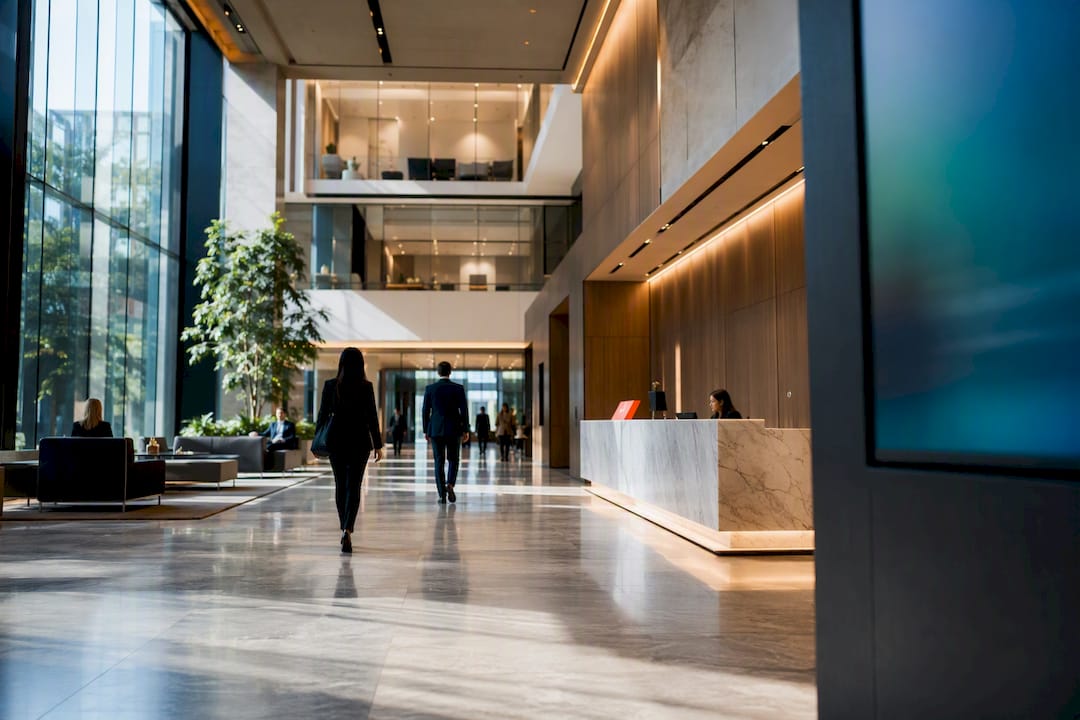
The biggest impact comes from a commercial-grade welcome screen (or a three-zone split layout) paired with a cloud CMS and one named content owner. Add a portrait wayfinding kiosk near the entrance if your building has multiple departments or floors. Your immediate move: pick hardware rated for 500+ nits, assign someone to own the content calendar, and set an update cadence before you worry about anything decorative.
TL;DR:
Commercial displays rated for at least 16 to 24 hours of daily use with remote management capabilities are essential for lobby durability and maintenance.
Brightness should start at 500 nits and increase to over 700 for well-lit or naturally bright environments to ensure visibility; panels should also last around 17 years at 8 hours daily use.
A three-zone content model divided into welcome, utility, and ambient areas helps keep the display organized, readable, and relevant for visitor engagement.
Cloud-based CMS platforms allow non-technical staff to update content easily, with a recommended refresh cadence of weekly or biweekly to prevent content from becoming stale.
Integrating visitor management and calendar feeds into screens enables personalized greetings and reduces front-desk traffic, boosting both experience and operational efficiency.
Table of Contents
Office Lobby Display Ideas Worth Building First
Not every lobby screen concept earns its budget line. These eight ideas consistently deliver, ranked by how fast they pay off in visitor experience or operational time saved.
Welcome wall with dynamic greetings. A large-format screen showing the company logo, visitor names, or “welcome” messages tied to a visitor management feed works well for offices with 20+ daily visitors. Below that volume, a static rotating welcome template does the job without the integration cost.
Three-zone split layout. Divide the screen into a welcome band (top, 60% of space), a utility strip (schedule or weather, 25%), and an ambient corner (brand video loop, 15%). This is the fastest template to deploy across multiple lobbies because each zone updates independently.
Portrait wayfinding kiosk. A vertical touchscreen or QR-code directory near elevators cuts front-desk direction requests, especially in buildings with more than three tenants or departments.
Event and schedule board. Pull room bookings or event calendars directly onto the screen so visitors and staff see meeting locations without asking reception.
Live dashboards and PR tickers. Sales numbers, safety-days-without-incident counters, or a scrolling news or press-mention ticker work for companies that want the lobby to double as a culture signal for visiting clients.
Sponsored loops and local ad inventory. Retail centers, franchises, and multi-tenant buildings can sell 10 to 15 second ad slots to nearby businesses, a straightforward way to offset screen costs.
Digital directory with rotation rules. For shared buildings, rotate tenant listings every 10 to 15 seconds and pin emergency contact info to a fixed zone that never rotates.
Brand-story ambient loops. Award showcases, employee spotlights, or sustainability milestones running silently in the background give waiting visitors something to absorb without demanding attention.
Hardware and Placement: What to Buy and Where It Goes
Buy for durability first, resolution second. Lobby screens run far longer than a living room TV, and consumer-grade panels aren’t built for it.
Commercial displays are rated for 16 to 24 hours of daily use with system-on-chip media players built in, while consumer TVs top out around 6 to 8 hours a day before failure rates climb, according to a practical IT guide to corporate lobby signage. Commercial panels also carry remote management APIs that let IT push updates and check status without walking to the lobby.
Brightness matters more than most buyers expect. The same guide recommends 500 nits as a baseline, rising to 700 or more in atriums with heavy natural light. Pair that with panels rated for 50,000+ hours of backlight life, roughly 17 years at 8 hours a day.
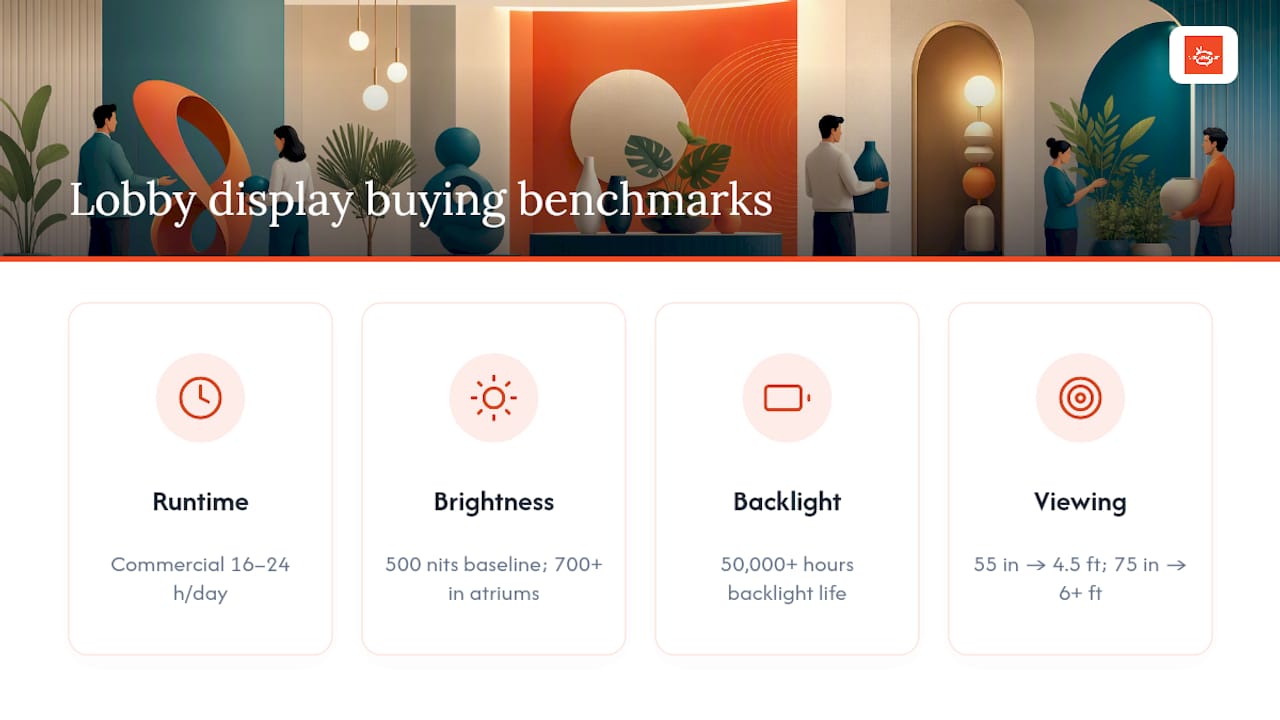
For sizing, divide screen inches by 12 to get the minimum viewing distance in feet. A 55 inch display needs about 4.5 feet of clearance; a 75-inch display wants 6+ feet. Portrait orientation suits wayfinding and directories; landscape suits welcome walls and video content. A single large-format panel usually beats a video wall for lobbies under 2,000 square feet, since video walls add bezel seams and multiply failure points.
Building a Content Strategy That Won’t Go Stale
The three-zone model gives structure to what otherwise turns into a cluttered mess of logos and stock photos. The same operational framework breaks the screen into welcome, utility, and ambient zones, each with a distinct job.
Welcome zone: Company branding, visitor names, and daily greetings. Keep it to one idea per screen.
Utility zone: Weather, room schedules, wayfinding, or emergency info. This is the zone people actually read.
Ambient zone: Brand videos, culture content, or slow-rotating photography. This fills dead air without competing for attention.
Use portrait templates for directories and landscape templates for welcome walls. Most cloud CMS platforms include drag-and-drop templates so a facilities coordinator, not an IT specialist, can swap a graphic or update a date. Assign either facilities or internal communications as the content owner and set a weekly or biweekly refresh cadence. Stale content is the fastest way for a lobby screen to become invisible.
Keep visitor-facing text large enough to read from six feet away and offer a language toggle if your visitor base is multilingual. A quick look at visual storytelling techniques can help nontechnical teams design ambient loops that hold attention without feeling like a slideshow.
Pro Tip: Build a simple content calendar with an approval step before any seasonal graphic goes live. Screens that skip approval workflows are the ones still showing a holiday message in February.
Connecting VMS, Calendars, and Remote Editing
Visitor management integrations turn a generic welcome screen into a personalized one, pulling a visitor’s name and host directly onto the display the moment they check in, according to the same IT guide. Calendar feeds work the same way for room availability boards.
Test both integrations in a staging environment before go-live. Run sample data through the greeting template to check name rendering and character encoding, since a broken integration in front of a real visitor is a bad first impression. A browser-based cloud CMS lets your content owner make these edits from any device, no developer required. Set dayparting rules for business hours versus after hours, and build in holiday overrides you can toggle on and off rather than rebuild each year.
Keeping Lobby Screens Secure Without Slowing Anyone Down
Public-facing screens are still networked devices, and they deserve the same scrutiny as any other endpoint. Put lobby displays on a dedicated VLAN with outbound-only CMS pulls so the screen can fetch content but never becomes an inbound entry point on your network.
Enable kiosk mode on every device, disable unused USB and HDMI inputs, and lock down the screen’s operating system so nobody can exit to a desktop. Rotate service account credentials on a schedule and audit which APIs are exposed to the CMS vendor.
What to Measure and How to Make the Screen Pay for Itself
Five numbers tell you whether a lobby display is working: uptime, content freshness (how often it actually gets updated), reception load reduction, visitor satisfaction, and ad revenue per screen if you’re monetizing.
Uptime: Track offline alerts against a 99% target.
Content freshness: Log the date of the last update per zone.
Reception load: Compare front-desk direction requests before and after a wayfinding kiosk goes live, using a two-week baseline log.
Visitor satisfaction: A short one-question survey at checkout works better than a long form.
Ad revenue per screen: Relevant only if you’re running sponsored content.
Deployments of this kind have reported measurable gains; one operator saw a 25% increase in class attendance after switching to real-time screen updates, a reminder that fresh, well-timed content changes behavior, not just perception.
For monetization, an ad exchange marketplace lets you sell rotating slots to nearby businesses without building your own sales infrastructure. Set clear ad specs (resolution, duration, file format), build a rotation schedule, and use your CMS analytics dashboard to see which content and ad slots actually get attention.
The 30/60/90 Rollout Plan
Days 1 to 30: Install commercial hardware, set up cloud CMS basics, name a content owner, and get welcome and utility templates live.
Days 31 to 60: Test VMS and calendar integrations in staging, then train staff on the editing workflow.
Days 61 to 90: Establish your analytics baseline, run a monetization trial if relevant, and lock in ongoing governance.
The most common pitfall: skipping the staging step for integrations and discovering a broken name field in front of your first VIP visitor.
Installation and Mounting: Wall, Ceiling, or Stand
The mounting method depends on your lobby’s traffic pattern and sightlines more than personal preference.
Wall mounts work for most lobbies and are the least expensive option. A fixed low-profile mount suits a welcome wall that visitors approach directly; a tilting mount helps when the screen sits above eye level, common in atriums with high ceilings. Confirm the wall can support the panel’s weight, commercial displays run heavier than consumer TVs, and route cable conduit through the wall rather than leaving cords exposed.
Ceiling mounts suit lobbies where floor or wall space is limited, or where a screen needs to hang above a reception desk without blocking sightlines to staff. These require a structural anchor point and usually a licensed installer, since ceiling loads carry more risk than wall loads.
Freestanding stands and kiosk enclosures fit wayfinding displays that need to sit mid-lobby, away from walls. Choose a weighted base for high-traffic areas where a stand could get bumped, and pick a locking enclosure if the device has an exposed input panel.
For any mount type, leave service access. A screen that requires removing drywall to swap a media player defeats the purpose of a quick-update cloud CMS. Match the mount to your viewing distance math from the hardware section: a screen mounted too high or too far off-center forces visitors to tilt their heads, which cuts how long they actually look at it.
Lighting: The Variable Most Teams Get Wrong
A screen with the right specs still looks washed out under the wrong lighting. Lobbies with floor-to-ceiling windows or skylights need that 700+ nit brightness minimum mentioned earlier, but brightness alone doesn’t solve glare.
Position the screen perpendicular to major light sources rather than facing them directly. A screen facing a bank of west-facing windows will wash out every afternoon regardless of its nit rating. Anti-glare film or a matte display finish helps in atriums where repositioning isn’t possible.
Overhead lighting matters too. Direct spotlights aimed near the screen create hot spots and reflections that make text hard to read from an angle. Softer, indirect lighting around the display area, paired with slightly dimmed ambient lighting directly in front of the screen, keeps contrast readable without turning the lobby into a dim reception room.
Test at three times of day before finalizing placement: morning, midday, and early evening. A screen that looks great at 10 AM can be unreadable by 3 PM if the sun angle shifts across a glass wall. If your lobby has variable lighting throughout the day, look for displays with automatic brightness sensors that adjust output rather than relying on a fixed setting.
Planning for Growth Before You Need It
The lobby screen you install this year rarely stays a single-screen project. Multi-location businesses, in particular, run into scaling problems when the first deployment wasn’t built with expansion in mind.
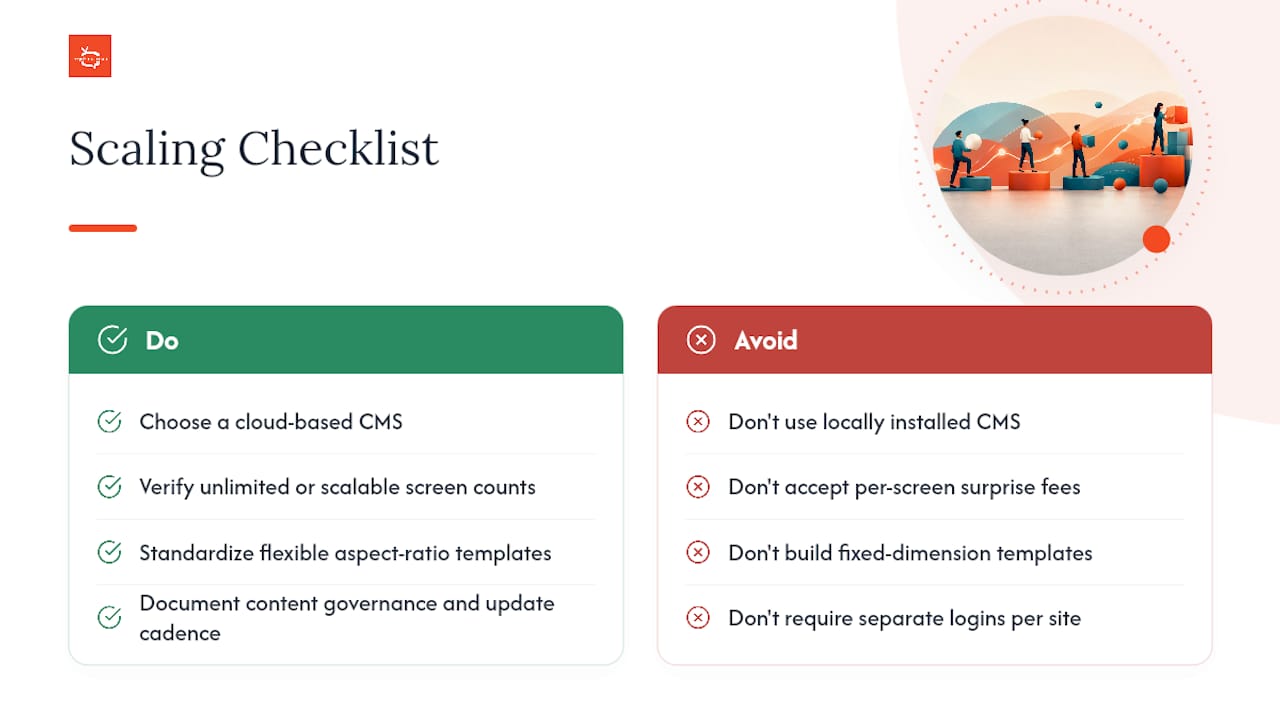
Start with a cloud-based CMS rather than a locally installed one, since cloud platforms let you add screens across additional floors, buildings, or locations without reinstalling software on each new device. Confirm your platform supports unlimited or easily scalable screen counts before you commit, some systems charge per-screen fees that make a five-lobby rollout unexpectedly expensive.
Standardize your templates early. If your welcome wall template only works for one lobby’s dimensions, you’ll rebuild it for every new location. Build templates in flexible aspect ratios from day one, and document your content governance model so a second office can follow the same update cadence without reinventing the process. Multi-location businesses managing screen networks benefit most from a single dashboard that controls every screen, rather than separate logins per site.
Also plan for hardware refresh cycles. At 50,000+ hours of panel life, most commercial displays last 8 to 12 years under normal lobby use, but media players and firmware typically need updates sooner. Budget for that separately from the display itself.
Operational Priorities Beat Decorative Upgrades
Most lobby display projects fail not because the screen looks bad, but because nobody owns the content after month one. Readability, a named content owner, and a measurement plan will outperform a prettier template every time. The operators who saw a 25% jump in attendance after switching to real-time updates didn’t win with better design. They won because someone kept the screen current and could see what was working.
If you take one thing from this article, make it this: choose a cloud CMS and set your update workflow before you spend another dollar on hardware upgrades.
— DKS
Get Your Lobby Screens Running Without an IT Ticket
Many modern digital signage platforms give your team the ability to update every screen, from any device, in real time, without waiting on IT or a developer. That matters most when you’re running the three-zone model or a personalized welcome wall, since content that goes stale defeats the purpose of the screen in the first place.

Some platforms support unlimited screens at no extra per-screen charge, so multi-location rollouts may have similar complexity to single ones. If monetization is part of your plan, the built-in ad exchange marketplace lets you cross-promote with nearby businesses and turn lobby screens into a small revenue line instead of a pure cost center. Check current pricing and channel plans, or read through how the setup process works to see what installation and content support looks like before you commit.
FAQ
What’s the minimum brightness for a lobby display?
Aim for 500 nits as a baseline, and go to 700 nits or higher if your lobby has large windows or a skylight.
How long do commercial lobby displays last?
Commercial-grade panels are typically rated for 50,000+ hours of use, which works out to roughly 8 to 12 years under normal daily lobby operation.
Do I need a technical background to update lobby screen content?
No. A cloud-based CMS like Signstream lets a nontechnical content owner update screens from a browser or mobile device, no coding or IT ticket required.
How much does Signstream cost?
Signstream’s SIGNSTREAM NETWORK plan runs $10 USD per month per channel, and the CUSTOM CHANNEL plan runs $105 USD per month per channel.
Can lobby screens actually generate revenue?
Yes. Screens running local ad inventory through an ad exchange marketplace can generate ad revenue by cross-promoting nearby businesses, turning an operational cost into a modest income source.
Recommended
Comments