

Avoid Frozen Screens: MP4/H.264 and Preflight Rules for Signage Operators

For most screens, your default upload should be an MP4 container with H.264/AVC video (baseline or main profile) and AAC audio. If your player supports it and you’re running higher resolutions, HEVC (H.265) or VP9 will get you better quality at a smaller file size. The one rule that matters more than any codec choice is to match your source file to what your specific player actually supports, because most signage platforms won’t re-encode a bad file into a good one.
TL;DR:
Avoid GIF animations unless very short and simple; converting to MP4 reduces CPU load and prevents playback issues on lower-powered devices.
Embedding all dependent files in an HTML5 ZIP package and avoiding external links or APIs enhance reliability for interactive content.
Confirm each file’s source resolution and format before upload, and run on actual hardware to prevent stuttering or unplayable files.
Signstream checks files before deployment, preventing format mismatches and streamlining management for large, multi-location networks.
Table of Contents
Choosing the Right File Formats for Signage: A Quick Taxonomy
Not every asset on your screen network needs to be a video. Matching the file type to the job saves you re-encoding headaches later and keeps your playlists running smoothly across every location.
Here’s how the major categories break down for digital screen content:
Video: MP4 or WEBM for looped promos, menu boards, and any content where reliability matters more than interactivity
Static images: JPEG for photos, PNG for logos and anything needing a transparent background
Animated GIFs: fine for short, simple loops, but heavier on device resources than most operators expect
HTML5 ZIP packages: best for data-driven dashboards, live feeds, or anything interactive
Audio playlists: for background music or paging, often handled as M3U or PLS playlists rather than single files, a format Broadsign’s documentation supports alongside a wide range of video containers
Fonts: TTF, OTF, or WOFF, usually embedded directly inside HTML5 packages
Video wins on reliability. It plays the same way every time, on every screen, with no dependency on a browser engine. HTML5 wins on interactivity but costs you some of that predictability. Images are the lightest lift of all three, but a badly compressed one still tanks your load times.
The catch that trips up a lot of operators: a file can upload successfully to your content management system and still fail to play correctly. Upload success just means the platform accepted the file. Playback depends entirely on what the physical player, whether a media box, smart TV app, or embedded system, can actually decode. Those are two different checks, and skipping the second one is where most signage headaches start.
Video Encoding Cheat Sheet for Digital Signage
If you take one section of this guide and paste it straight into your encoder settings, make it this one. These are starting points, not absolutes, but they’ll get you playing cleanly on the overwhelming majority of commercial signage players.
Codec priority:
H.264/AVC in an MP4 container for the widest possible compatibility. OnSign’s documentation recommends H.264 specifically because it works across nearly every player on the market, and the platform does not re-encode uploads, so what you send is what plays.
H.265/HEVC or VP9 when your player supports them and you need better compression at higher resolutions. BrightSign’s format documentation confirms broad support for H.265, H.264, VP8/VP9, and MPEG-2, though some of its players cap out at 1920x1080 regardless of the source file’s actual resolution.
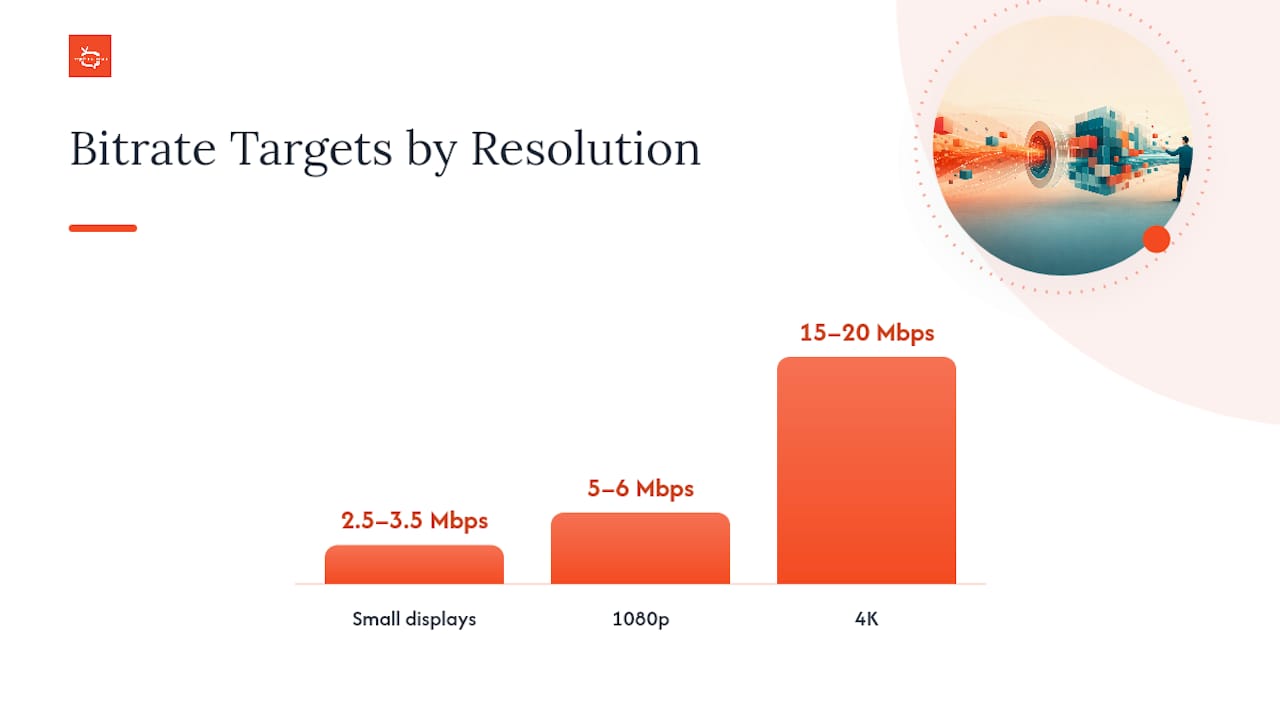
Bitrate targets (this is where most operators either overshoot their file size or undershoot their quality):
Resolution | Target Bitrate | Notes |
— | 2.5–3.5 Mbps | Good for smaller displays or bandwidth-limited store-and-forward setups |
1080p | 5–6 Mbps (up to 10 Mbps) | Sweet spot for most restaurant, gym, and retail screens |
4K | 15–20 Mbps | Only worth it if your player and display both genuinely support it |
XOGO’s encoding guide lands on nearly identical numbers and specifically recommends 2-pass encoding, where the encoder analyzes the whole file once before compressing it, for the best balance of file size and visual quality.
Frame rate and pixel format: Keep every asset in a playlist at the same frame rate, typically 30 fps. Mixing 24, 30, and 60 fps clips in one rotation is a common cause of visible micro-stutter as the player switches between them. Use yuv420p pixel format with baseline, main, or high profile depending on your player’s decoder.
Audio: AAC-LC at 48 kHz. Some players, per BrightSign’s own documentation, require that 48 kHz sample rate even on a silent track, so don’t strip the audio channel entirely if your player expects one present.
Images and Animations: When to Skip the GIF
Static images are the easiest asset type to get right, and also the easiest to get needlessly wrong through oversized files.
JPEG: best for photos, at quality settings between 80 and 90. Anything higher rarely improves visible quality on a screen viewed from a few feet away.
PNG: use for logos, text overlays, or anything requiring transparency.
File size: aim to keep individual images under roughly 5 MB for fast delivery, especially across networks with many screens pulling content on a schedule.
Color space: export in sRGB and match the file’s pixel resolution to your display’s native resolution whenever possible.
Animated GIFs deserve a specific warning. NowSignage’s supported file types documentation notes that GIFs demand significantly more CPU and RAM than a comparable video file, which can destabilize lower-powered players over time. Converting that same animation to a short MP4 loop cuts the load dramatically and plays back smoother.
Pro Tip: If a graphic designer hands you an animated GIF for a promo loop, ask for an MP4 export too. It takes them thirty seconds and saves you a support call three weeks later when a player starts freezing.
For font handling, embed TTF, OTF, or WOFF files directly inside your HTML5 packages rather than relying on a player to have a specific font pre-installed.
How Should You Package HTML5 Signage Content?
HTML5 gives you interactivity that static video can’t touch, but it only works reliably if you follow the packaging rules exactly.
Build the ZIP with index.html at the root. Don’t bury it in a subfolder. Most players look for that exact file path first and will fail silently if it’s missing.
Include every dependent file inside the ZIP. Images, fonts, CSS, and JavaScript all need to travel with the package. Daktronics’ content specification requires this same self-contained structure and enforces its own file-size limits on top of it.
Avoid external API calls and analytics scripts. Store-and-forward players often run offline between content pulls, so anything reaching out to the internet mid-playback is a reliability risk.
Confirm your player’s rendering engine. Chromium-based HTML rendering is the safest bet today. Older players sometimes run legacy engines that choke on modern CSS or JavaScript.
Reserve HTML5 for content that genuinely needs it: live data dashboards, real-time feeds, or interactive kiosk menus. For a straightforward looped promotion, video is simpler and more forgiving.
Preflight Checklist Before You Upload
A five-minute check before upload beats an hour of troubleshooting a screen that’s stuttering in front of customers.
Name files with resolution and frame rate baked in, like ad_1080p_30fps.mp4. It sounds minor until you’re managing forty files across six locations and can’t remember which version is which.
Check your player’s documentation first. Confirm the maximum file size and the exact containers and codecs it supports before you upload anything.
Run a preflight play test on the actual target player, not a laptop preview. Watch specifically for micro-stutter and any lag between audio and video.
If your platform flags a re-encoding warning, don’t ignore it. Encode locally with 2-pass compression and re-test before pushing it live again.
Insights from OnSign’s platform documentation underline why this matters: many signage platforms simply will not re-encode a file that doesn’t match player specs. They’ll accept the upload and let it fail on the screen instead of catching the problem for you.
Why Content Fails on Screen (and How to Avoid It)
Most playback failures trace back to one of four causes, and none of them require expert-level troubleshooting to fix.
Unsupported codec or container for that specific player model, even when the file plays fine on a laptop.
Bitrate too high for the player’s decoder, causing dropped frames or a frozen image.
Mixed frame rates within the same playlist, the most common cause of visible stutter.
Oversized GIFs that overwhelm a lower-powered player’s memory.
Bandwidth and caching cause a second wave of problems. Schedule large uploads during off-peak hours, or rely on store-and-forward distribution so screens pull content ahead of when it needs to play rather than streaming it live. Scheduling everything at the last minute is its own trap: it leaves zero time to catch a bad encode before it’s already live on a customer-facing screen.
One more check worth building into your routine: accessibility. Keep text contrast high and give every slide enough dwell time to be read comfortably. Signstream’s own ADA guidance for signage managers covers the specifics in more depth if you’re setting standards across multiple locations.
Vector vs. Raster Graphics: Does It Matter for Screens?
For anything printed, vector formats like SVG or EPS matter enormously because they scale infinitely without losing quality. For digital signage, the calculation changes.
Your screen has a fixed native resolution, whether that’s 1920x1080 or a 4K panel. A raster image, one built from a fixed pixel grid like a JPEG or PNG, only needs to match that resolution once. It doesn’t need to scale to a billboard the size of a building the way a print file might.
That said, vector formats still earn their place in a signage workflow. Logos, icons, and text-based graphics built in SVG give your design team a source file that can be resized cleanly for a phone-sized menu screen one week and a lobby display the next, without needing separate exports for every resolution. Most CMS platforms don’t play SVG files directly on-screen, though. They’re a design and asset-management tool, not a playback format.
The practical workflow: keep your master logo or icon in SVG or EPS for editing and resizing flexibility, then export a PNG at the exact target resolution for actual upload to your signage platform. A design team working across video and static assets, similar to the workflow 121 Groups video production process follows when prepping source files to match final playback specs, will typically maintain both versions side by side rather than converting on the fly every time a new screen size enters the network.
Color Spaces: Why sRGB Should Be Your Default
Print designers live in CMYK. Signage operators should not.
CMYK (cyan, magenta, yellow, black) is a color model built for ink on paper, where colors are created by subtracting light. Screens work the opposite way, adding light through red, green, and blue pixels. A file exported in CMYK and displayed on a screen will render with washed-out or shifted colors because the display simply doesn’t interpret that color data correctly.
sRGB is the standard color space for the overwhelming majority of digital displays, including nearly every commercial signage panel and consumer TV used as a media display. It’s also the default color space most cameras, phones, and design tools export to unless someone deliberately changes the setting.
Adobe RGB covers a wider range of colors than sRGB, which makes it valuable for high-end photo editing and certain print workflows. On a standard signage display, though, that wider range usually gets clipped back down to what the panel can actually reproduce, meaning the extra range provides no visible benefit and can occasionally cause colors to render slightly differently than intended if the file isn’t converted properly before export.
The safe rule: export every image and video asset in sRGB before it reaches your content management system. If a designer hands you a file and you’re not sure what color space it was built in, a quick check in a straightforward image format overview covering JPEG and PNG export settings will help you spot the difference before it becomes a problem on-screen.
Matching Formats to Your Signage Hardware
Not every screen in your network is running the same hardware, and format support varies more than most operators expect.
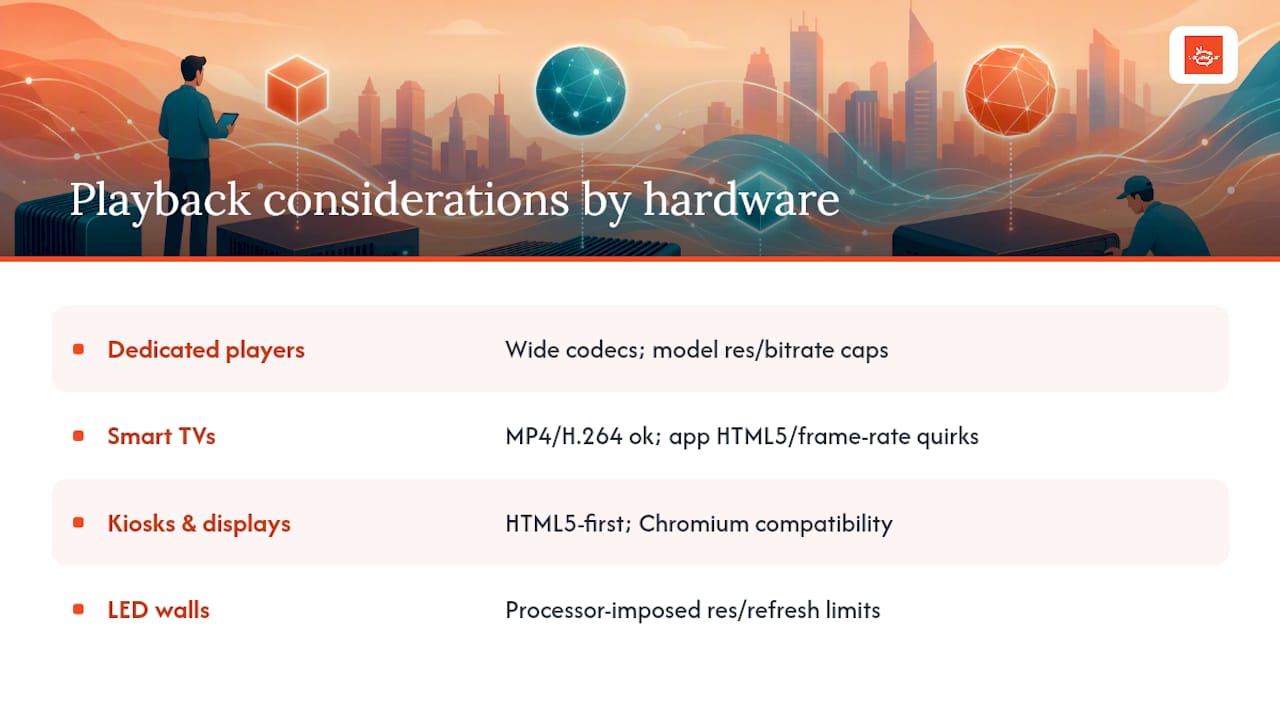
Dedicated media players (like BrightSign units) tend to offer the widest codec support, including H.265, H.264, VP8/VP9, and MPEG-2, but individual models still cap resolution or bitrate depending on their processing power. Always check the specific model’s spec sheet rather than assuming every player from the same manufacturer behaves identically.
Smart TVs running signage apps generally handle standard formats like MP4/H.264 well, but their app-based playback environment can behave differently from a dedicated player, particularly with HTML5 content or unusual frame rates. A closer look at how smart TVs compare to dedicated media players is worth reading before you standardize hardware across a franchise network.
Kiosks and interactive displays lean more heavily on HTML5 for touch-driven menus and data feeds, which means the Chromium-engine compatibility question matters more here than on a passive video loop.
LED walls and large-format displays, common in stadiums or big-box retail, often run through dedicated video processors rather than the signage player directly. That processor may have its own resolution and refresh-rate requirements sitting between your source file and the actual panel.
The through-line across all four categories: hardware capability, not file format alone, determines what actually plays. A perfectly encoded 4K file is worthless on a player that maxes out at 1080p.
Handling Transparency in Signage Files
Transparency, technically an alpha channel, tells a display which parts of an image should show the background layer through instead of a solid color. It’s essential for logo overlays, lower-third graphics, or any layered design where one asset sits on top of another.
PNG is the standard format for transparency in static signage graphics. It supports a full alpha channel, meaning you get smooth, graduated transparency at the edges rather than a hard, jagged cutout.
JPEG does not support transparency at all. If you export a logo with a transparent background as a JPEG, that transparency gets filled in with a solid color, usually white or black, which can look like a visible box around your logo on-screen.
Video transparency is trickier. Standard MP4/H.264 files don’t carry an alpha channel, so a “transparent” video overlay isn’t something most signage platforms support natively the way a layered graphic design tool would. If your design calls for a video element appearing to float over other content, the more reliable approach is usually building that composite directly into the video during editing, or handling the layered effect within an HTML5 package where CSS and JavaScript can manage transparency more precisely than a video container can.
The practical takeaway: use PNG for any static graphic that needs to sit cleanly over a background or another image, and build layered video effects into the source file during editing rather than expecting the signage platform to composite transparency on the fly.
Animated GIF or Video: Which Should You Use?
Short answer: video, in almost every case where the two are interchangeable.
Animated GIFs have one real advantage: simplicity. They’re easy to create, universally recognized, and don’t require any encoding knowledge to produce. That’s where the advantages end for signage specifically.
GIFs use a much less efficient compression method than modern video codecs, which means a GIF and an MP4 showing the identical animation can differ enormously in file size, with the GIF often coming out several times larger for the same visual result. That larger file also demands more processing power to decode and display, and NowSignage’s documentation specifically flags GIFs as heavier on CPU and RAM than standard video, a real concern on lower-powered or older players running multiple screens.
When a GIF still makes sense: very short, simple loops (a blinking icon, a small animated badge) where file weight barely matters and you need something quick without touching a video editor.
When to convert to MP4 instead: anything longer than a few seconds, anything with complex motion or many colors, or any animation running on a player already juggling several other assets in rotation. Converting is usually a five-minute job in most video editing tools and pays for itself the first time it prevents a frozen screen during business hours.
For genuinely complex motion graphics, built in software like After Effects, export directly to H.264 or H.265 MP4 rather than routing through GIF at any point in the pipeline. Skipping that intermediate step preserves quality and keeps file size under control from the start.
Archiving and Version Control for Signage Assets
The most overlooked part of file management isn’t the format. It’s what happens to the file six months after it goes live.
A folder structure that makes sense to you today will not make sense to whoever inherits your screen network next year, or even to you in eight months when a franchise location asks for last spring’s promo re-run. A few habits prevent that scramble:
Keep a master folder per campaign or promotion, not per screen or location, so updates propagate logically instead of getting duplicated six different ways.
Version filenames clearly, using something like promo_v2_1080p_30fps.mp4 rather than overwriting the original or appending vague labels like “final” or “final2.”
Retain the original high-resolution source file separately from the compressed, upload-ready export. If a player upgrade later supports 4K, you don’t want to be re-shooting a promo you already had in hand.
Log which version is live on which screen group, especially across a franchise or multi-location network where different sites may run slightly different content on different schedules.
A simple shared spreadsheet or a folder-naming convention handles this for a handful of screens. Once a network grows past a few locations, a platform with built-in scheduling and content history removes the guesswork of tracking which file went where and when.
Why Getting the File Format Right Actually Moves Your Numbers
Previews and templates catch a mismatched format before it ever reaches a live screen, not after a customer notices a frozen menu board. Dynamic promotions running through digital signage platforms have been reported to increase class attendance after switching from static content to timely, correctly formatted updates. Check completion rates in your analytics regularly. A low completion rate on one asset is usually a format problem hiding in plain sight.
— DKS
Let Signstream Handle the File Prep for You
Signstream is built for operators who’d rather manage promotions than troubleshoot codecs. Every upload gets checked against device previews before it goes live, so you catch a mismatched resolution or an unsupported format before it ever reaches a customer-facing screen, not after.

That matters most when you’re running unlimited screens across multiple locations, which Signstream supports at no extra per-screen cost. Templates handle the layout work, so your team doesn’t need encoding knowledge to keep menu boards, class schedules, or promo loops looking sharp. And if you want to turn those same screens into a revenue source, the built-in ad exchange marketplace lets you cross-promote with other local businesses and get paid for the space.
Start by comparing plans on the pricing page, where channel access runs $10 per month per channel on the SignStream Network tier, or $105 per month per channel for a fully custom channel. If you’d rather see how setup and content support work before committing, the how it works page walks through hardware installation, content design, and ongoing management options. Either way, testing your own files on your own hardware before you commit to a network-wide rollout is the smartest first step you can take.
Sources
FAQ
What Is the Best File Format for Digital Signage?
MP4 with H.264 video and AAC audio is the safest default for the widest range of players. If your hardware supports it, H.265 or VP9 offers better compression, especially at higher resolutions.
Do Signage Platforms Re-Encode My Files Automatically?
No, most platforms don’t, including OnSign, which explicitly does not re-encode uploads. Your source file needs to already match your player’s supported specs before you upload it.
Should I Use GIFs for Signage Animations?
Generally, no. GIFs use significantly more CPU and RAM than an equivalent MP4, according to NowSignage’s platform documentation, and converting short animations to video reduces the risk of a player freezing or slowing down.
What Bitrate Should I Use for a 1080p Signage Video?
Target roughly 5 to 6 Mbps, up to 10 Mbps if your player supports higher rates. XOGO’s encoding guide recommends starting around 5,000 kbps and adjusting from there based on how the file performs on your specific hardware.
How Much Does Signstream Cost?
Signstream’s Network plan runs $10 per month per channel, with a Custom Channel tier available at $105 per month per channel for businesses needing more tailored content.
Can I Use HTML5 Content on Any Signage Player?
Not universally. HTML5 packages need a Chromium-based rendering engine to display reliably, and some older players run legacy engines that struggle with modern CSS or JavaScript, so confirm compatibility before building anything interactive.
Recommended
Comments